
User management
If you’re an admin, you can manage the other accounts on this instance from the Administration entry in the profile menu, in the top navbar. This is separate from your own financial data, which stays private to you even as an admin.
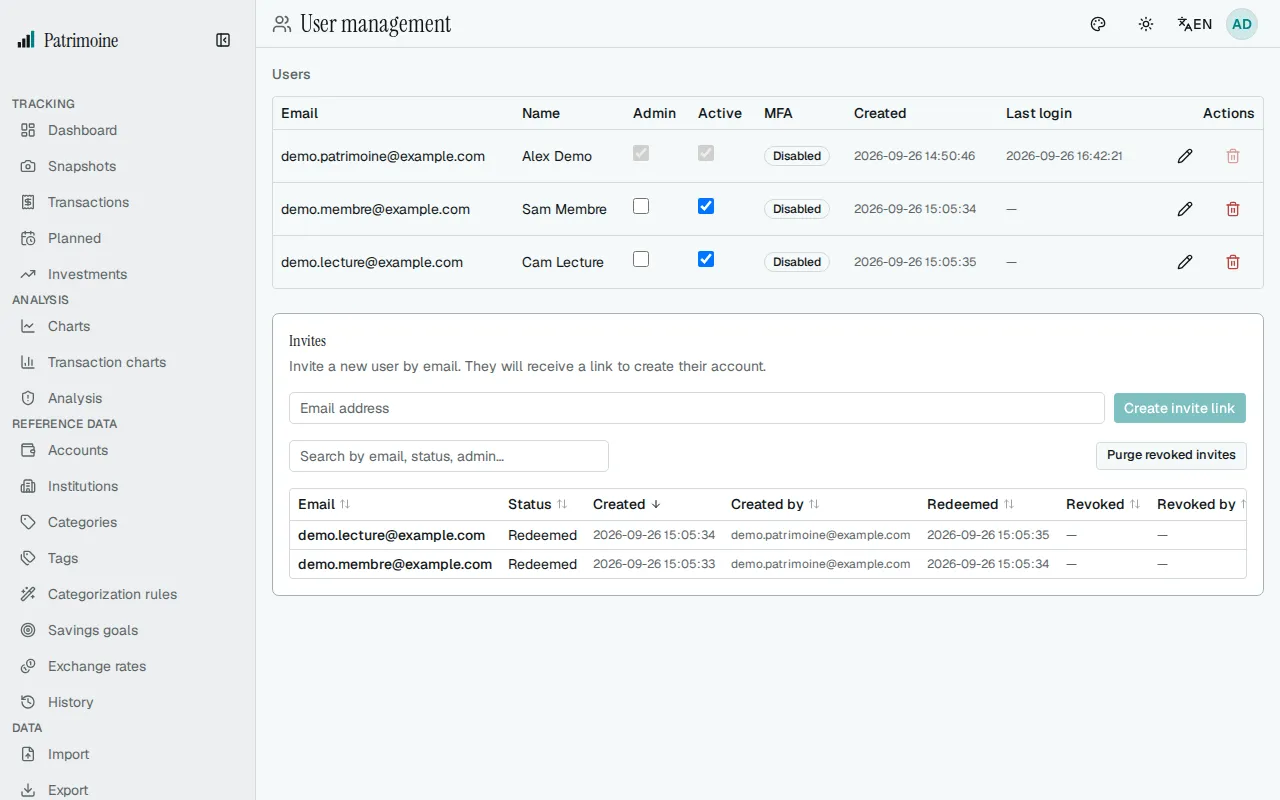
Admins and regular users
Section titled “Admins and regular users”An admin can:
- enable/disable accounts;
- invite new users;
- promote or demote other admins.
The users table is sortable: click a column header to sort by it, and again to reverse the order. When sorting by last sign-in, users who have never signed in come last.
Inviting someone
Section titled “Inviting someone”From the Users page, enter an email and send an invite.
The invite link
Section titled “The invite link”- The invite link is shown once for you to copy — it’s also emailed to that address if outgoing email is configured — and the one-time reveal disappears after a minute, so copy it promptly.
- It expires after 7 days and can only be used once; you can revoke it before it’s used.
- A revoked, expired, or already-used link shows an error message immediately instead of the account-creation form.
What the invited person sees
Section titled “What the invited person sees”The link opens a page where the invited person enters a display name and chooses a password; the account is created and they are signed in. Invitations work even when open registration is off.
The invites table
Section titled “The invites table”- The table is sortable (click a column header) and filterable (search by email, status, or admin).
- It shows each invite’s creation date, which admin created it, its redemption date if used, and — if revoked — the revocation date and which admin revoked it.
Purging revoked invites
Section titled “Purging revoked invites”The Purge revoked invites button permanently deletes those revoked more than 30 days ago; pending, expired, and redeemed invites are never affected.
Disabling a user
Section titled “Disabling a user”Disabling a user blocks them from logging in but keeps all their data intact — it can be reversed at any time.
Disabling a user’s two-factor authentication
Section titled “Disabling a user’s two-factor authentication”If a user is locked out because they lost access to their authenticator app, an admin can disable their two-factor authentication from the Users page. This is logged in the audit log.
Changing a user’s email
Section titled “Changing a user’s email”An admin can change the email address of a local account (not applicable to accounts signing in through your organization’s identity provider, whose email is managed there). The user must sign in with the new address afterward. This is logged in the audit log.
Deleting a user
Section titled “Deleting a user”An admin can permanently delete another user’s account from the Users page — this removes all of that user’s data (accounts, transactions, budgets, everything) and cannot be undone.
Admin Activity log
Section titled “Admin Activity log”The Audit Log page has an Admin Activity tab, visible to admins only, showing every admin action taken across all accounts:
- role/status changes;
- MFA resets;
- email changes;
- deletions;
- invite create/revoke events.
Each entry shows the acting admin, the affected user or invite, and when it happened. Filter by entity type or date range, and export the filtered results as CSV or JSON.