Import and export
This app has two distinct mechanisms that are easy to confuse: bank-statement import (adds new balance snapshots) and full JSON backup (a complete copy of your data for safekeeping or transfer).
- Bank-statement import only adds or updates balance snapshots for one account — undo by editing or deleting the snapshots it created.
- Backup restore matches every section (institutions, accounts, snapshots, budgets, and more) by name and updates or creates them — it never deletes data missing from the file.
Bank-statement snapshot import
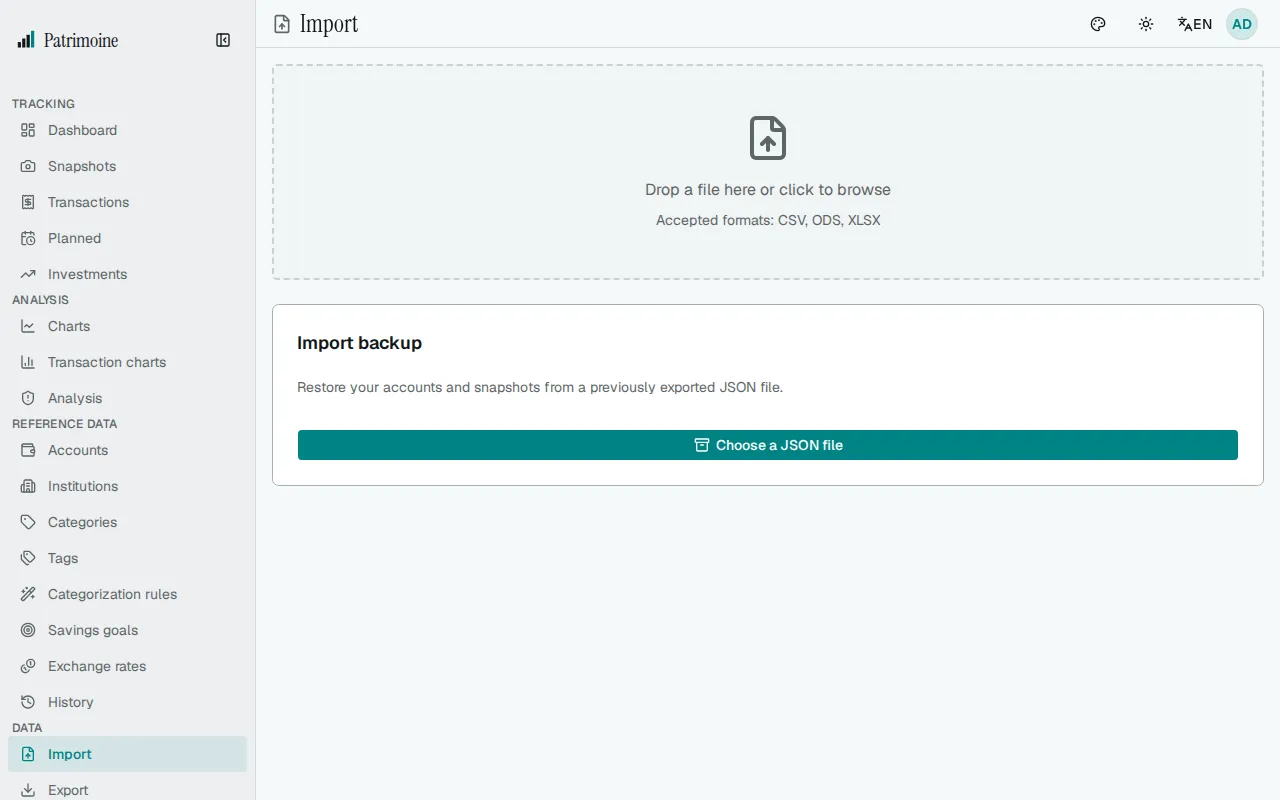
Section titled “Bank-statement snapshot import”On the Import page, upload a bank statement in CSV, ODS, or XLSX format. The importer auto-detects the column layout for several major French banks and shows a preview of the resulting balance snapshots before you commit them. The supported banks are Crédit Agricole, BNP Paribas, LCL, Société Générale, Caisse d’Épargne, Banque Populaire and Crédit Mutuel.
A statement is limited to 20,000 data rows and 1,000 accounts (columns); larger files are rejected with an error.
Full JSON backup
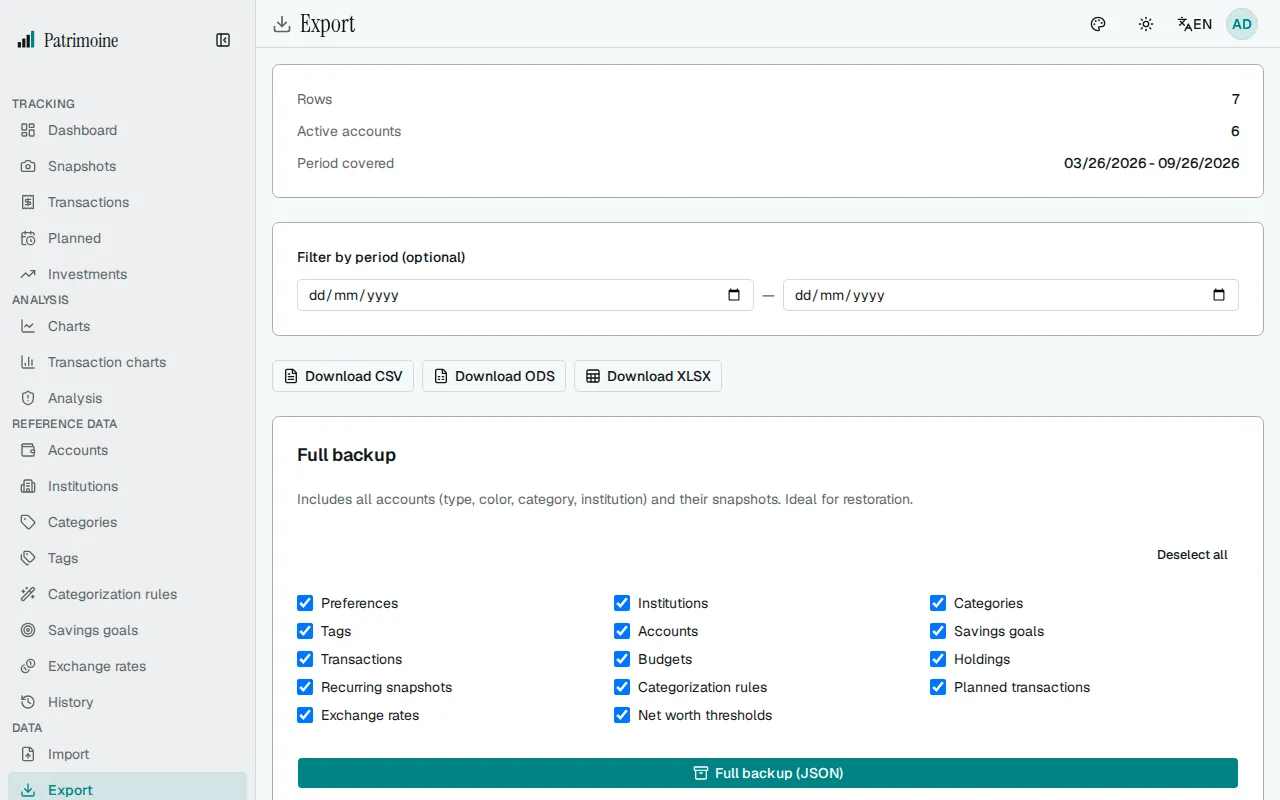
Section titled “Full JSON backup”On the Export page, the “Full backup (JSON)” button downloads a complete, selectable-sections backup of your data. The sections are:
- preferences (language, currency, theme, date and number formats, report frequency, whether you are offered a rule after categorizing a transaction, and whether a category is suggested from the payee)
- institutions
- categories
- subcategories
- tags
- payees (with their other names and default category)
- accounts (with snapshots, opening date, OFX identifier and saved CSV import mapping)
- savings goals
- transactions
- budgets
- holdings
- recurring snapshots
- categorization rules (with their suggested label)
- planned transactions
- exchange rates
- net worth thresholds
- chart annotations
- envelopes
- saved transaction filters
- report settings (the accounts that count as your investments, the withdrawal rate, real return and yearly spending of the Independence tab, and the current age, retirement age, retirement length, market volatility and seed of the Retirement tab)
- saved reports (the named reports of the report builder)
- dashboards (their names, their order and the card layout of each)
- alert rules (the rules you saved in Settings, with the category or account each one is limited to)
- notification channels (in-app, email, both or off for each kind of notification)
Uncheck any section you don’t want included.
A backup also keeps each transaction’s status (pending, cleared or reconciled), the transactions in the trash, each account’s reconciliations, the link between the two legs of a transfer, each account’s on-budget or off-budget setting, and whether each account counts in your net worth.
Backup version 9 adds the lines of split transactions (kept with their transaction), the saved filters of the transactions page, and whether the guided tour has already been shown to you. Saved filters are an ordinary section: tick or untick them in a partial export, and they appear in the restore preview and result like any other section.
Backup version 10 adds the weekend option and the skipped dates of planned transactions, and the suggestions you dismissed (kept with their account). An older backup restores with no weekend option and no skipped dates, and never removes the ones already stored.
Backup version 11 adds your report settings, including the settings of the retirement simulation, and your saved reports. The report settings name their investable accounts by account and institution name, never by internal number. A saved report names the categories, subcategories, accounts and tags of its filters by name in the same way. Both are ordinary sections: tick or untick them in a partial export, and they appear in the restore preview and result like any other section. A backup made by an older version has neither, and restoring it never removes the settings or reports already stored. A backup that lacks the simulation settings leaves the ones already stored as they are.
Backup version 12 adds the pairs of transactions you marked as not duplicates on the Probable duplicates screen. They travel with the transactions: they are part of the transactions section, so a partial export includes them with it and a restore rebuilds them only when that section is restored. A restore rebuilds each pair on the transactions it created or matched, skips a pair when one of its transactions was not restored, and adds nothing when you restore the same backup again. A backup made by an older version has no pairs, and restoring it never removes the ones already stored.
Backup version 13 adds your payees, with their other names and default category, and the payee of each transaction. Payees are an ordinary section: tick or untick them in a partial export, and they appear in the restore preview and result like any other section. A payee is named, never numbered, so a restore matches it against your own payees. A backup made by an older version has no payees; restoring it creates them from the transactions, as described below.
Backup version 14 adds your dashboards, your alert rules and your notification channels. They are ordinary sections: tick or untick them in a partial export, and they appear in the restore preview and result like any other section. A backup made by an older version has none of them, and restoring it never changes the ones you already have.
Backup version 15 adds the payee of each planned transaction. A backup made by an older version has none, and restoring it never changes the payee of a planned transaction you already have.
Backup version 16 adds the limits you set for specific months, under each budget. A backup made by an older version has none, and restoring it never removes the month limits you already have. A budget that the restore creates starts in the month of the restore, so its month limits for earlier months are kept but not used.
Backup version 17 adds your pay schedules and the schedule each envelope and savings goal uses. Schedules travel with envelopes and savings goals: backing up or restoring either one includes them. A schedule you already have under the same name takes the cadence from the backup, and a restore never replaces your default schedule. A backup made by an older version links envelopes and goals to a planned income instead; restoring it creates a pay schedule from that income.
Backup version 18 adds your contribution templates and the template each savings goal uses. Templates travel with savings goals: backing up or restoring goals includes them. A template you already have under the same name takes the kind and amount from the backup. A backup made by an older version has no templates, and restoring it never changes the template of a goal you already have.
Backup version 19 adds the fee of each holding. A backup made by an older version has no fees: restoring it creates holdings without a fee and never changes the fee of a holding you already have. It also keeps whether each account is excluded from net worth; a backup made by an older version restores every account as counted and never changes the setting of an account you already have.
Backup version 20 adds the asset class of each holding. A backup made by an older version has no classes: restoring it creates holdings without a class (Unclassified) and never changes the class of a holding you already have. A class this version does not know is restored as Unclassified rather than refused.
Backup version 21 adds the link from each loan to the asset it finances, stored by the asset’s name and institution. A backup made by an older version has no links: restoring it creates loans without a link and never changes the link of a loan you already have. A link whose asset cannot be found in your accounts (it is not in the file, it is in the trash, or it is a debt) is restored as no link rather than refused.
Backup version 22 adds your text size and density preferences, so a restore brings back how the app looks to you. A backup made by an older version has neither, and restoring it never changes the preferences you already have.
Restoring a JSON backup
Section titled “Restoring a JSON backup”On the Import page, choose a previously downloaded JSON backup file.
- The app shows a preview of what would be created or matched for each section, with the same selectable sections as the export, before you confirm the restore.
- After the restore completes, the result view shows a per-section breakdown (created, updated, skipped as duplicate, errors) with expandable details listing exactly which records were skipped or failed.
- Transactions that were in the trash when the backup was made are put back in the trash, and reconciled transactions stay reconciled. A backup made by an older version carries no status, so each of its transactions is restored as
cleared. - Transfers come back linked. A pair is linked again only when both legs are present and consistent (one is an expense and the other an income, on two different accounts, both live or both in the trash, and neither already linked or reconciled); otherwise its legs are restored as ordinary transactions and counted as errors in the result. A backup made by an older version has no transfers and treats every account as on-budget.
- Split transactions come back with their lines. A split whose lines cannot be restored (a wrong number of lines, an unknown category, an amount that is not valid, or a transfer leg) is restored as an ordinary transaction without its lines, and counted as an error in the result. A backup without split lines, such as one made by an older version, never removes the split lines already in the app.
- Saved filters are matched by name. A filter refers to its categories, subcategories, accounts, tags and payees by name, never by internal number. If any of them does not exist where you restore, the filter is skipped and listed as an error rather than restored broader than it was. A filter with the same name and the same content counts as a duplicate, and one with the same name and other content is updated.
- Saved reports follow the same rule as saved filters. They are matched by name, and a report that refers to a category, subcategory, account, tag or payee that does not exist where you restore is skipped and listed as an error, rather than restored broader than it was. A report with the same name and the same content counts as a duplicate, and one with the same name and other content is updated. You keep at most 100 saved reports; a restore that would go over the limit skips the extra reports and lists them as errors.
- Report settings are matched to your accounts by name. An account that does not exist where you restore, is archived or is a liability is left out of the list of investable accounts, without an error. Settings with a value outside its allowed range are skipped and counted as an error. This includes a retirement age that is not after the current age.
- Payees come back with their other names and their default category, and every transaction keeps its payee. A payee that already exists where you restore is not changed, apart from receiving the other names it was missing; another name that already belongs to a different payee is listed as an error and not stored, and a default category that does not exist where you restore is left empty. A backup made by an older version has no payees: each transaction gets the payee named by its suggested label, else its description, cleaned of the operation prefix, card suffix, dates, reference codes and store numbers like an import does, and the preview counts the distinct names it would create. Restoring the same backup twice creates nothing new.
- Dashboards are matched by name. A dashboard with the same name gets the layout from the backup, and one with a new name is added after your last tab, in the order of the file. A dashboard that places a card another of your dashboards already places is skipped and listed as an error, and so is any dashboard past the limit of 8. A dashboard identical to yours counts as a duplicate.
- Alert rules are matched by type (budget overspent, bill due, stale snapshot). A rule limited to a category or an account that does not exist where you restore is skipped and listed as an error, rather than restored for every category or account. A rule with a value outside its allowed range is skipped too. Restoring a rule does not check your alerts by itself.
- Notification channels are matched by type. A channel that differs from yours replaces it, and an unknown type or channel is listed as an error. The email channel is restored as it was, even if this server does not send email.
- Categorization rules match a payee condition by payee name. If a payee named in a rule does not exist where you restore, the rule is still restored but that condition never matches.
If you restore a backup and then import a bank file for the same period, the import preview flags the rows that look like the transactions you just restored, and the Probable duplicates screen on the Transactions page lets you review and merge any that got through. See Transactions.
Malformed values
Section titled “Malformed values”If a transaction in the backup file has a malformed value — for example an amount that isn’t a number, or a date that can’t be read — only that transaction is skipped. It is counted as an error in the result (the web app’s details list it), and the rest of the file is still imported.
Plain snapshot export
Section titled “Plain snapshot export”On the Export page, download just your snapshot data as CSV, ODS, or XLSX, optionally filtered by date range. A summary (row count, active account count, covered date range) is shown before you download.