
Categorization Rules
A categorization rule (titled Auto-categorization rules on the page) automatically assigns a category, subcategory, tags, and/or a suggested label to transactions matching conditions you define — both on future imports and, on demand, to transactions that already exist.
Defining conditions and an action
Section titled “Defining conditions and an action”A rule has two parts:
- Conditions: one or more (description, amount, account, category, payee, transaction type, and more) inside an AND/OR/NOT group.
- An action, applied once the conditions match: a category (and optionally a subcategory), tags, and/or a suggested label.
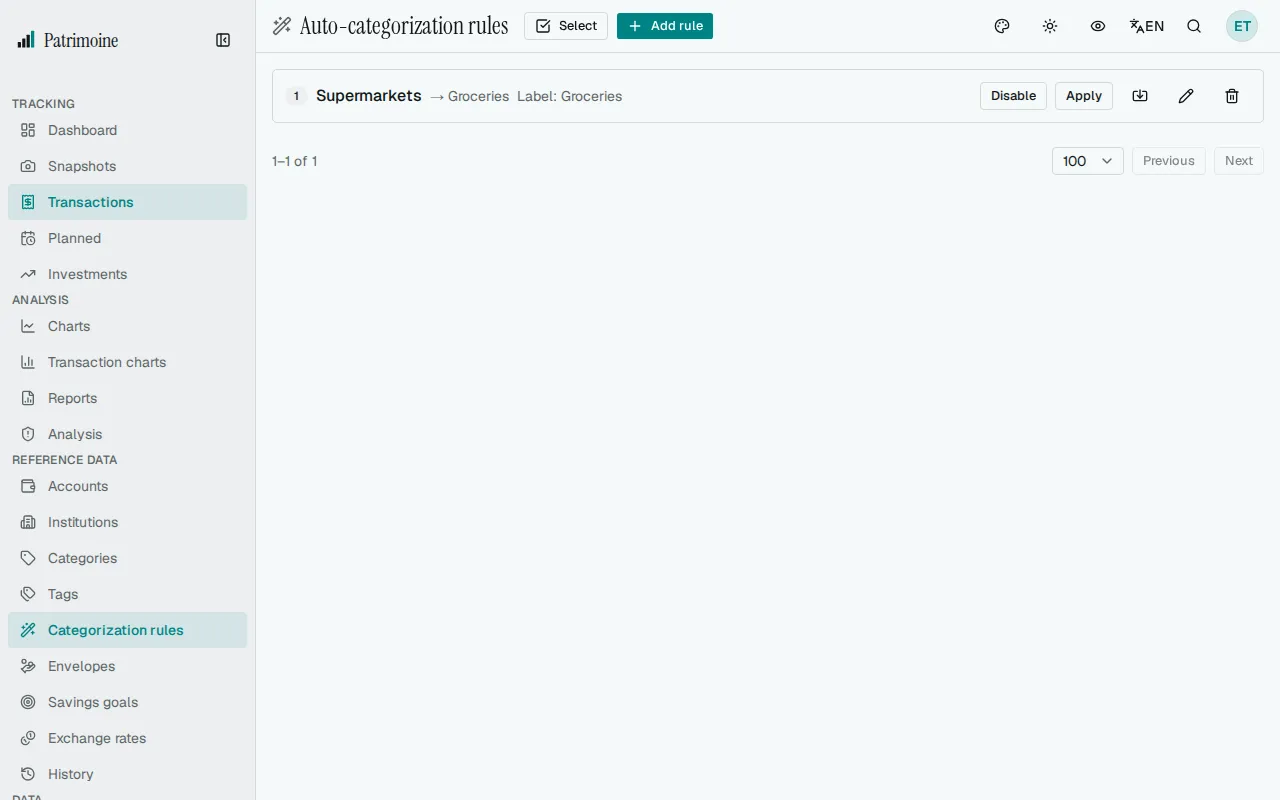
Two more settings control how the rule runs:
- A priority determines the order rules are evaluated against each other.
- The Apply automatically on import option controls whether the rule automatically acts on newly imported transactions: the rows of OFX, QFX, QIF, CAMT and CSV bank files imported from the Transactions page.
On import, a rule’s category wins over the payee’s default category, which only fills a category the rules left blank; a rule that only adds tags leaves the category to the payee (see Payees).
Operators and how text is compared
Section titled “Operators and how text is compared”Each condition compares one field of the transaction with a value. The operators on offer depend on the field:
- Description and suggested label: contains, does not contain, starts with, equals, is not, is one of and matches regex.
- Amount: equals, is not, greater than, less than, at least, at most and between.
- Account, category, subcategory and type: equals and is not.
- Payee: equals and is one of. You pick the payee by name (the list searches as you type) and, for is one of, add up to 20 of them as chips. The rule remembers the payee itself, not its name: renaming a payee changes nothing, merging it into another makes the rule follow the survivor, and a deleted payee never matches. A transaction with no payee never matches a Payee condition. There are no text operators on a payee.
A few details on how values are compared:
- contains, does not contain, starts with and is one of ignore upper and lower case. On text, equals and is not compare exactly, case included.
- is one of takes a list of up to 20 values of at most 200 characters each, and matches when the text is any of them.
- An amount condition compares numbers, so -12.5 matches a transaction of -12.50.
- An amount is typed in your number format: in English 1,500 is fifteen hundred and 1.5 is one and a half; in German 1.500 is fifteen hundred and 1,500 is one and a half. When you leave the field, it shows the number it understood (see Typing amounts).
- A text field that is empty (for example, a transaction without a suggested label) counts as not containing anything: does not contain and is not are true for it, and every other text operator is false.
Regular expressions
Section titled “Regular expressions”The matches regex operator tests a text field against a regular expression. These limits and checks apply:
- Upper and lower case are ignored, and only the first 1000 characters of the text are tested.
- A pattern is at most 200 characters long.
- The pattern is checked when you save the rule. A pattern that is not valid, or that takes too long to run on a test text, is refused with a message under the condition it belongs to. To simplify a slow pattern, avoid a repeat inside a repeat such as
(a+)+. - If a pattern turns out to be too slow during an import, the rule is skipped for the rest of that import — it is not turned off — and the import summary lists it.
- A preview or an Apply run that meets a pattern that is too slow stops early and says so.
Size limits
Section titled “Size limits”- A rule can nest groups 4 levels deep and hold 30 nodes in total, each condition and each group counting as one node. A counter above the conditions shows the size and turns into a warning close to the limit.
- A rule saved earlier that is larger keeps working, and you can still enable, disable, apply or delete it, but it cannot be saved again until you trim it.
Setting a suggested label
Section titled “Setting a suggested label”Besides a category and tags, a rule can set a suggested label, using the Set suggested label field of the rule form. Leave the field empty for a rule that sets no label.
The suggested label is also where a rule leaves a note on a transaction, as there is no separate notes field. For example, a rule matching amounts of -50.00 or less on one account can add a tag and a note to those payments only.
- A rule never overwrites a label you edited yourself, even one you cleared.
- A label set by a rule does not count as your own edit, so a later Import CSV categories run can still replace it.
Priority: the first matching rule wins
Section titled “Priority: the first matching rule wins”Rules are evaluated from the smallest priority number to the largest, and the first rule whose conditions match is the only one that acts on a transaction. A rule that only sets a label, with a smaller priority number than a category rule, therefore stops the category rule from acting on the same transactions. Give the label rule a larger number, or let one rule set both.
Previewing before you save
Section titled “Previewing before you save”The Preview matches button, in the create or edit form, runs the conditions currently entered against your existing transactions and shows which ones would match — nothing is changed until you save the rule. When the rule sets a suggested label, each matching transaction also says whether the label would be set or kept.
Applying retroactively
Section titled “Applying retroactively”The Apply button on an already-saved rule makes it act on existing transactions that don’t have a category yet — it never changes the category or tags of a transaction that’s already categorized.
When the rule sets a suggested label, Apply also sets that label on transactions that are already categorized, still never over a label you edited yourself.
Creating a rule when you categorize
Section titled “Creating a rule when you categorize”Turn on Offer to create a rule when I categorize in Settings; it is off by default. After you then set a category on a transaction — from the table, the edit form, or a bulk edit — a message offers a Create rule action. It opens the rule editor in a dialog, already filled in from what you just categorized: the description as the condition, and the category and, for a bulk edit, the tags you added.
- A bulk edit uses the distinct descriptions of the updated transactions, up to 20, and says when there were more.
- When a bulk edit skipped some transactions, the Create rule button is in the result panel instead of in a message.
- Nothing is created until you press Save rule. Closing the dialog or cancelling creates nothing, and saving does not apply the rule to existing transactions — use Apply for that.
The same rule can always be created from the rule form on this page.
Trash and restore
Section titled “Trash and restore”Deleting a rule moves it to the trash. A deleted rule is no longer applied, neither on import nor retroactively. Use the Trash button in the toolbar (shown once there is at least one deleted rule) to restore a rule or delete it permanently. Emptying the trash permanently deletes every rule in it and cannot be undone.
In the Android app
Section titled “In the Android app”Categorization rules has its own entry in the More menu next to Categories. For each rule, it lists:
- A summary of its conditions.
- Its priority.
- Whether it applies on import.
- What it does.
You can delete a rule from this list. You can also create and edit rules there, with the same conditions, priority, Apply automatically on import option, and category and tags actions as on the web — including nested AND/OR/NOT groups and every condition type (text, amount, account, category, transaction type).