Exchange Rates
If you hold accounts or investments in more than one currency, exchange rates let the app convert everything into a single base currency for totals and charts.
Setting a base currency
Section titled “Setting a base currency”Choose your base currency in Settings. All net worth totals, charts, and cross-currency comparisons are shown converted into this currency.
The exchange rates table
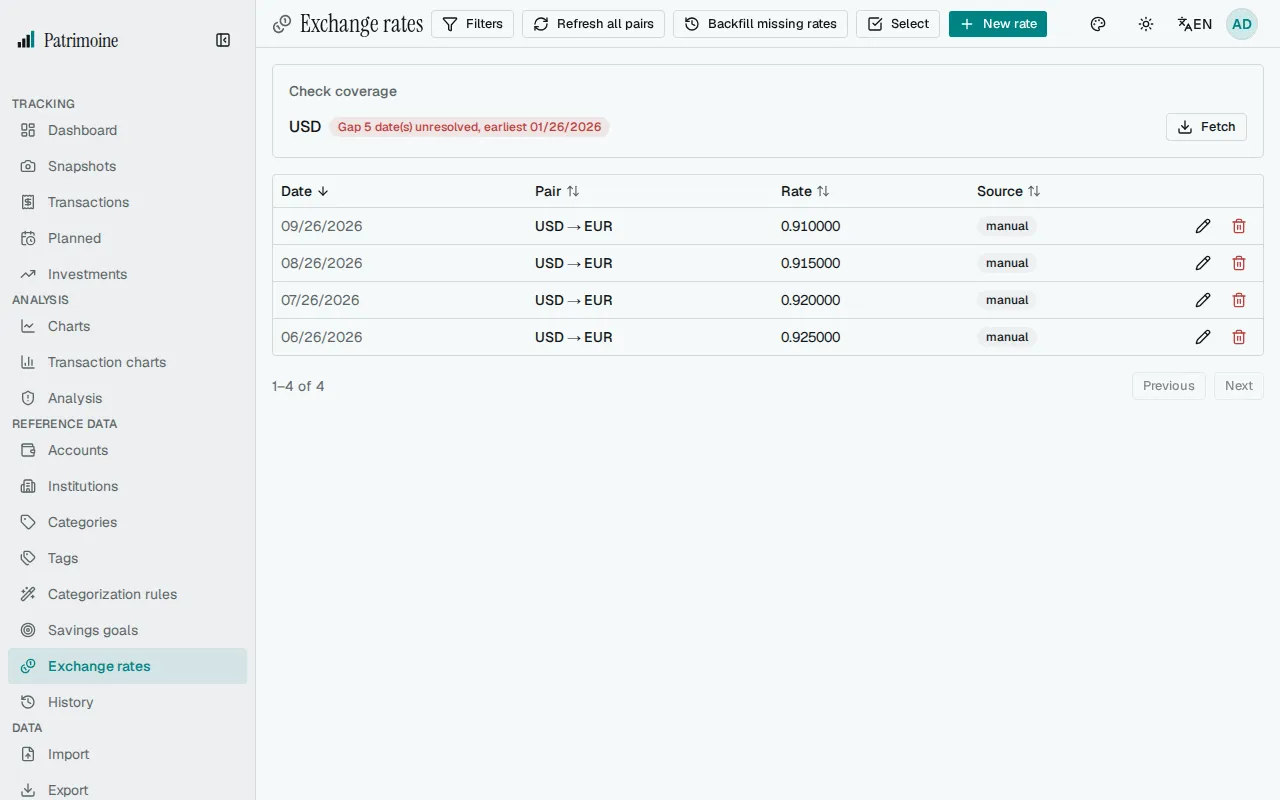
Section titled “The exchange rates table”The Exchange Rates page lists every stored rate as a paginated, filterable, sortable table. Create, edit, or delete a rate for a currency pair and date directly from this page. A rate keeps up to 10 decimals and shows at least 4, more only when it has them (0,9200, 0,0061234567).
Fetching and refreshing rates
Section titled “Fetching and refreshing rates”Two buttons fetch rates:
- The single-pair Fetch button, while creating or editing a rate, looks up a specific pair and date.
- The page-level Refresh all pairs button fetches today’s rate for every currency your accounts use and stores or updates it as today’s entry.
Refresh never touches other, older dated rows already in the table.
Patrimoine also refreshes today’s rate for each of your account currencies once a day, automatically. Rates come from the European Central Bank through the Frankfurter service. Rates you entered manually are never overwritten.
Rate history chart
Section titled “Rate history chart”Filter the table to a specific currency pair to reveal a line chart of that pair’s rate history over time.
Backfill missing rates
Section titled “Backfill missing rates”The Backfill missing rates button fetches the exact-date exchange rate for every date below whose currency differs from your base currency but has no stored rate for that date:
- Snapshot dates.
- Investment lot purchase dates.
- Dividend dates.
This way your snapshot totals and investment gains convert accurately. Dates that fail to fetch are skipped rather than blocking the rest.
Missing rates and large backfills
Section titled “Missing rates and large backfills”When a total includes a currency with no stored rate, that currency is counted at par and a small notice under the page title names it, with a link to this page. It appears on the pages that show converted totals: Dashboard, Summary, Charts, Analysis, Investments and Savings goals. Dismissing it hides it for that set of currencies on every device you sign in on; it comes back when another currency is missing or after you add, edit or delete a rate.
A backfill fetches at most 50 dates per run. If dates are left, the confirmation says how many; run it again to continue.
Coverage audit
Section titled “Coverage audit”Choose Check coverage to run the coverage audit. It checks every snapshot, holding, and dividend date against your stored exchange rates and flags problems per currency:
- A coverage gap means no rate resolves on or before that date at all.
- A stale rate means one resolves, but it’s more than 30 days older than the date it covers.
Each flagged currency shows a one-click Fetch action that opens the fetch dialog pre-filled with that currency and the earliest problem date.
- Within 30 days — OK
- Found, but older — Stale
- Never found — Gap
Bulk actions
Section titled “Bulk actions”Enter selection mode to select multiple rates at once and delete them in a single action.