Snapshots & History
A snapshot is a balance recorded for one account on one date. Snapshots are the raw data behind every chart and total in the app.
Recording a snapshot
Section titled “Recording a snapshot”Use the new snapshot entry form to record balances for one or more accounts at once, for today or a past date. Open it from the New snapshot button on the Snapshots page, or press Ctrl+N from anywhere.
The snapshots list
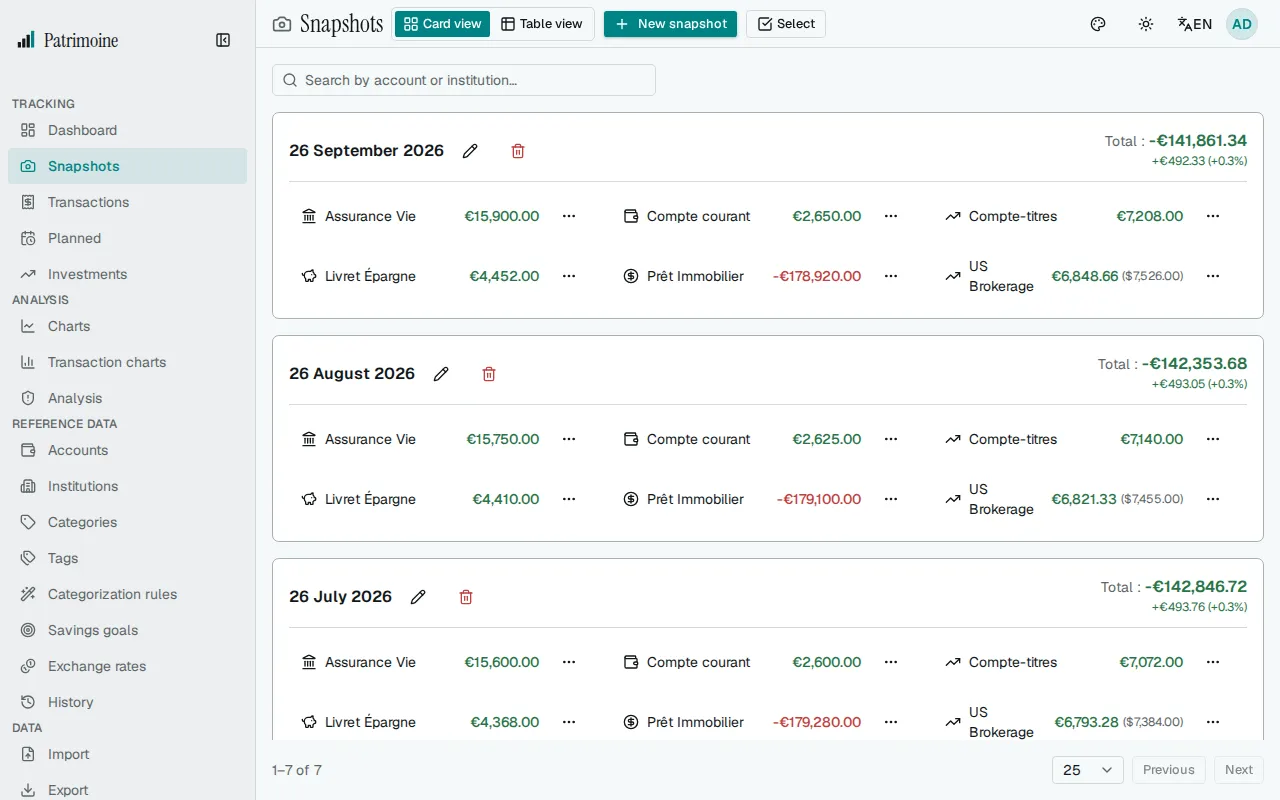
Section titled “The snapshots list”The Snapshots page lists every recorded balance. It offers:
- A card or table view toggle.
- Per-snapshot edit and delete.
- Multi-select bulk delete with a confirmation step.
In the table view, clicking a column header sorts by date, total, or a specific account across your entire history, not just the currently loaded page. A balance that rose since the previous date shows an up arrow and one that fell shows a down arrow, beside its green or red colour.
Each date’s total leaves out the accounts you excluded from net worth, while their amounts still show on that date and you can still record them.
The history table
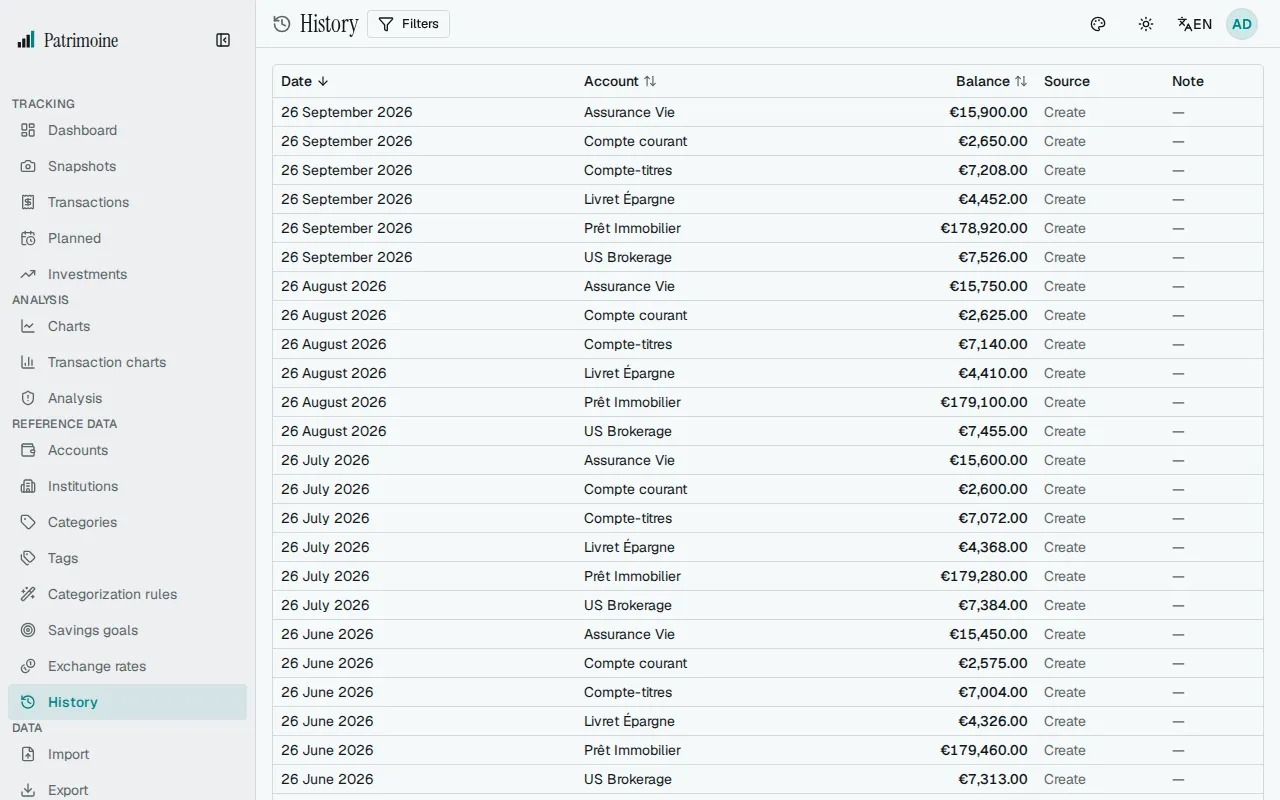
Section titled “The history table”The History page shows every snapshot across all accounts as one flat table. Filtering and sorting happen on the server over your whole history, so even your oldest snapshots are found. Filter by date range, account, or balance amount (amounts follow your number format), and sort by clicking the Date, Account, or Balance header.
The table shows 50 snapshots per page. Move with Previous, Next, or the page selector, and choose 50, 100, or 250 snapshots per page. Changing a filter, the sort, or the page size takes you back to the first page.
The table scrolls inside the page, so its header stays in view and the page controls stay at the bottom. On a phone each snapshot is shown as a card (account and balance on top, then the date and source, then the note), with a Sort by selector and a direction button in place of the column headers.
Recurring snapshot reminders
Section titled “Recurring snapshot reminders”From the Settings page’s Recurring reminders section, set up a per-account reminder on a schedule (weekly or monthly) so you don’t forget to record a balance. Reminders can be edited, disabled, or deleted at any time.
When due, a reminder appears in the notification bell and stays there until you record a snapshot of that account dated that day or later. Whether it also reaches you by email is set in the notification settings, and people who received reminder emails before the update keep receiving them. The Recurring reminders card links to the notification settings, where Snapshot reminder can be set to In-app, Email, In-app and email, or Off. The app never auto-creates a snapshot on your behalf, since it doesn’t know your up-to-date balance.
- A background job reschedules each reminder whose next run date has arrived, for the next weekly or monthly period.
- The alert check, which runs every 30 minutes, then shows the reminder in the bell and emails it if you chose that.
- Recording a snapshot of the account dated that day or later clears the reminder.
Importing bank statements
Section titled “Importing bank statements”Balance snapshots can be imported from a CSV, ODS or XLSX bank statement; see Import and export. Individual bank transactions are imported from Transactions.
Deleting a snapshot
Section titled “Deleting a snapshot”Deleting a snapshot removes it from the list and from every chart. Right after deleting a single snapshot on the web, an Undo message lets you bring it back. There is no snapshot trash to browse, so once the message is gone the snapshot cannot be restored from the app. Double-check before confirming a bulk delete.