
Accounts & Institutions
Accounts represent every checking, savings, investment, or other balance you want to track. Institutions group accounts under the bank or provider that holds them.
Account types
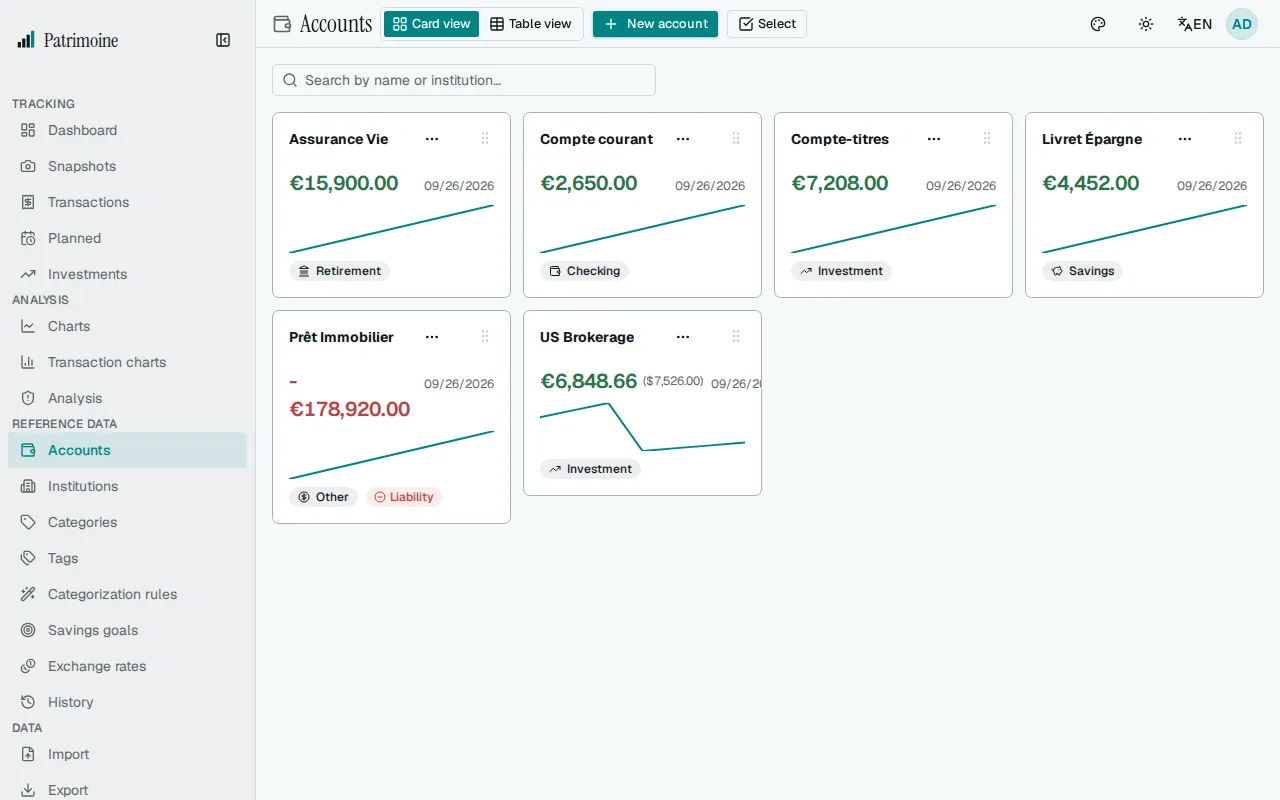
Section titled “Account types”Each account has a type — checking, savings, investment, retirement, cash, real estate, vehicle, collectible, or other.
An account can also carry an optional liability flag for debts such as loans or credit card balances, which subtract from your net worth instead of adding to it.
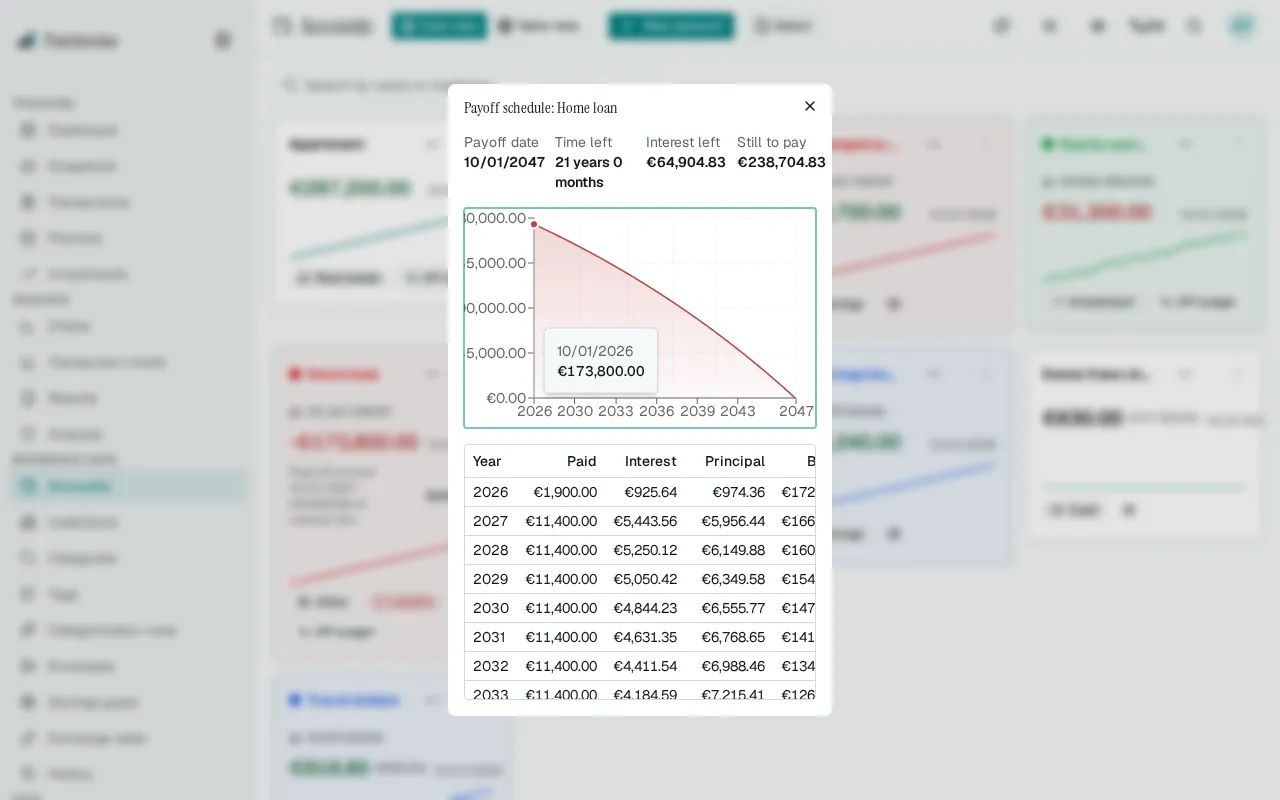
For a loan, enter its interest rate (a yearly percentage) and its monthly payment (the interest and principal part, without insurance or fees) in the account form. Once the account has a snapshot, its card shows the date the loan will be paid off and the interest still to pay, and Schedule opens the balance month by month in a chart and a year-by-year table. The calculation uses the latest snapshot balance and a monthly interest of a twelfth of the rate; it does not model rate changes, early repayments or fees. If the payment does not cover the monthly interest, or the loan would last more than 50 years, the card says so instead of giving a date.
Link a loan to an asset
Section titled “Link a loan to an asset”In a loan’s form (an account marked as a liability), the optional Linked asset field lists your active asset accounts: a property, a vehicle, a collectible or any other account that is not a debt and is not archived. A loan has one asset, and an asset can have several loans, for example a mortgage and a renovation loan.
A loan linked to an account that was moved to the trash or archived shows as having no linked asset. An account that has loans linked to it cannot be turned into a debt until they are unlinked, and a loan turned into an ordinary account loses its link. Linking changes no net worth figure.
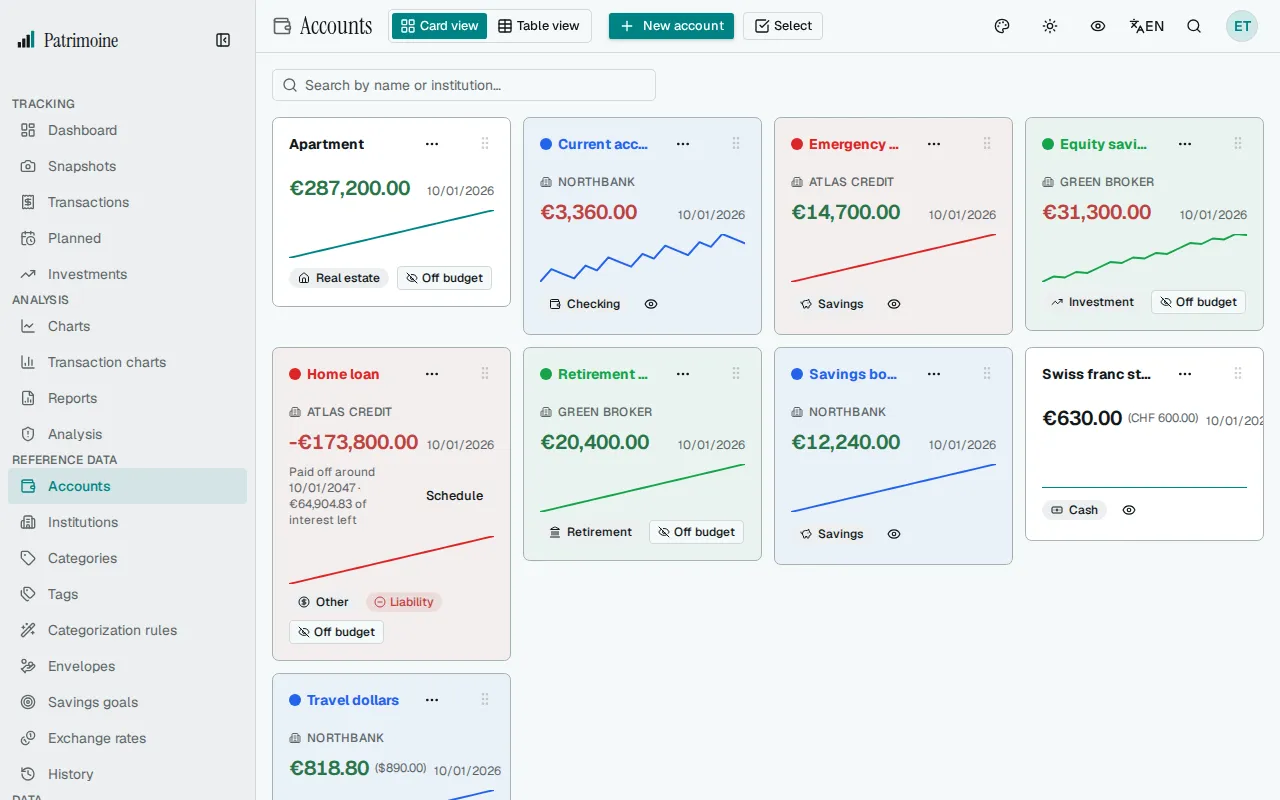
The card of an asset that has loans shows an Equity block: the asset’s value (its latest balance), each linked loan with its latest balance, the equity (the value minus the loans) and the loan-to-value (the loans as a percentage of the value). Amounts are in your base currency at today’s exchange rates, computed by the server from each account’s latest snapshot, so they can come from different dates. A loan with no snapshot or no exchange rate is named and left out of the equity instead of being counted, and an asset with no balance or no rate shows no equity. An account excluded from net worth still appears in the block, with its Excluded badge, because the link is informational; loans in the trash are ignored. The equity is a view: it changes no net worth figure, chart, goal or forecast, and it is not shown for archived assets, in the table view or in the Android app.
The link can also be set from the command line and is kept in backups. The Android app does not show or change it, and keeps the link when you edit the account there.
Liquidity horizon
Section titled “Liquidity horizon”Each account has a Liquidity horizon: Immediate, Semi-liquid, Blocked or Long term. New accounts start as Semi-liquid. Set it to Immediate for the accounts you can spend from: only those are counted by default in the Spendable this month card on the Dashboard and in Free to use on Envelopes. The Analysis page groups your balances by this horizon.
On budget and off budget
Section titled “On budget and off budget”A checkbox in the account form, Include in budget and spendable, decides whether the account takes part in budgets, the income and expense charts, and the spendable figure. It is checked by default, so every existing account is on budget.
Turn it off for savings, investments or loans you follow without spending from. An off-budget account shows an Off budget button in the accounts table and on its card: click it to include the account in the budget again. On an included account, an eye button in the same place excludes it in one click. Neither opens the form.
- Off-budget accounts still count in balances, net worth and snapshots, unless they are also excluded from net worth.
- Their transactions are listed normally in the transactions table; they just stop reaching budgets and the income and expense charts.
- A transfer from an on-budget account to an off-budget one counts as saved in the savings rate.
Exclude from net worth
Section titled “Exclude from net worth”Some accounts you want to follow without counting them: a joint account that is not really yours, or a loan someone else repays. Leave such an account out of net worth and it stays in your lists with its balances and snapshots, but it stops adding to your totals.
On an account’s row or card, a Sigma button sits next to the budget button. Click it to leave the account out of net worth. The button becomes an Excluded button; click that to count the account again. Nothing opens and nothing asks you to confirm. A message says whether net worth went up or down and by how much, in your base currency, or only that the account is out when its latest balance or exchange rate is missing. With privacy mode on, the amount is hidden. The setting covers your whole history, not only the days from now on: past dates stop including the account too.
The account form has the same setting as an Include in net worth switch, on by default. Its hint lists what an excluded account leaves out and what it keeps. For a loan or other debt, a second hint says that leaving it out raises your net worth.
An Excluded badge follows the account’s name in account lists and pickers, so you can tell it apart; charts and their tooltips show the plain name. The badge also appears in the snapshot entry form and in the snapshot grid headers, where you can still enter the account’s amount.
An excluded account leaves:
- the net worth totals and the net worth, stacked by type, waterfall, concentration and liquidity charts, with the net worth thresholds, the alerts that watch them and the delta heatmap;
- the dashboard cards and the allocation charts;
- the totals of each date in the snapshot grid and of each institution;
- Spendable this month, the balance forecast of your available money, and Free to use;
- the default accounts of the Financial independence report on the Reports page. An account you tick there yourself still counts, even if it is excluded.
An excluded account stays in:
- the other alerts, reminders, savings goals and the Investments page;
- its own row, card, trend, snapshots and snapshot entry, so you can keep recording its balance.
Excluding a loan or a credit card raises your net worth by what you owe, because the debt no longer subtracts. The setting is independent of On budget: an account can be excluded from net worth and still count in your budgets, and the other way round.
Institutions
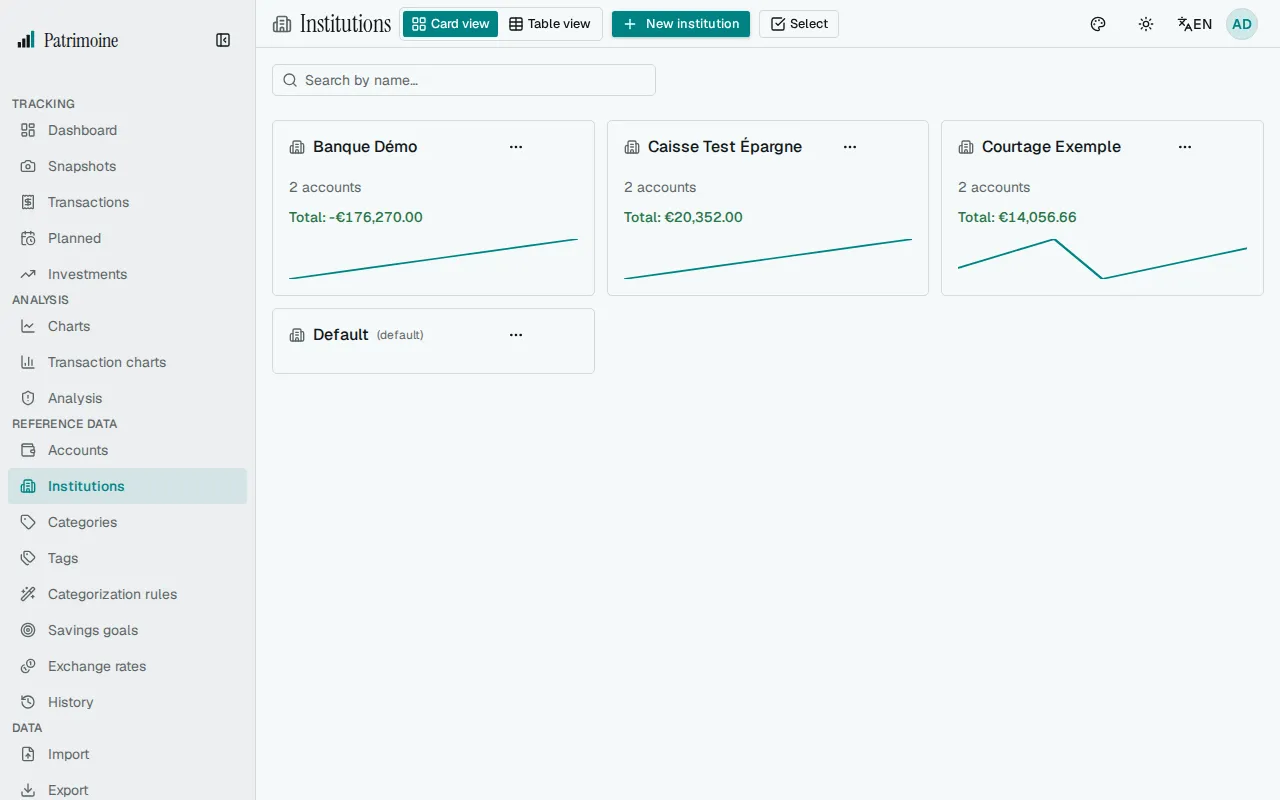
Section titled “Institutions”On the Institutions page you can create, rename, recolor, and delete institutions independently of accounts. Assigning an account to an institution groups it in totals and charts by bank or provider.
Institution history grid
Section titled “Institution history grid”On the Institutions page, the table view is a read-only history grid:
- one row per snapshot date;
- one column per institution, showing that institution’s total converted to your base currency on that date;
- a grand total and the change against the previous date.
Sorting and colours
Section titled “Sorting and colours”- When sorted by date, totals that rose are green with an up arrow and totals that fell are red with a down arrow.
- Sorting by a total or institution column hides the colour and change value, since the “previous” total can no longer be determined.
- Click a column header to sort by date, grand total, or a specific institution – sorting spans your entire history, not just the currently loaded page.
Archived institutions and warnings
Section titled “Archived institutions and warnings”- The archived button applies to the grid as well as the cards. While archived institutions are shown, they keep a column with a dimmed header so past balances remain readable; once hidden, their columns disappear and the grand totals no longer include them.
- A warning icon marks any total where an exchange rate was missing for that date.
An institution’s name and colour are edited from the card view.
Customizing the accounts view
Section titled “Customizing the accounts view”You can customize the accounts view in these ways:
- In grid view, drag and drop account cards to reorder them manually — the order is saved and used everywhere accounts are listed.
- Give an account an optional short name — it’s shown instead of the full name in space-constrained places like the snapshots table’s column headers and chart labels, falling back to the full name when unset.
- Set an optional opening date for an account — it’s shown in the accounts table and in the summary’s account breakdown table (both on-screen and in the PDF export).
- An account’s color is inherited from its institution (set from the Institutions page’s color picker) — it tints the card background and marks the dot and the accent bar. Names stay in the normal text colour, and a name too long for its card shows in full in a tooltip when you hover or focus it. Accounts don’t have their own independent color.
- Switch between a card grid and a sortable table using the view toggle at the top of the page.
- The Currency of an account can no longer be changed once it has snapshots.
- Use the search box to find an account by name or institution.
- The Bank account ID (OFX) field links the account to a bank file; see Transactions.
Archiving, trash, and restore
Section titled “Archiving, trash, and restore”Accounts and institutions each support three states:
- active;
- archived (hidden from default views but still counted);
- deleted (moved to a trash you can open from the page header).
A deleted account or institution can be restored from the trash, or permanently deleted from there — this is a two-step, deliberate action. While an account is in the trash its transactions are hidden from lists and analytics; restoring the account brings them back. Restoring an institution brings back only the accounts that were deleted with it, and an account whose institution is in the trash can only be restored once the institution is. A restore fails with a conflict if a live account or institution has taken the same name.
- Archive or unarchive — hides or reshows the account; nothing is deleted.
- Delete — moves the account and its snapshots to the trash.
- Restore — brings it back to whichever state it was in before deletion.
- Permanently delete — irreversible; also erases the account’s snapshots.
Closing an account
Section titled “Closing an account”Closing an account moves what is left on it to another account and archives it, all in one step. Open the account’s actions menu and choose Close account — it’s offered for active accounts only.
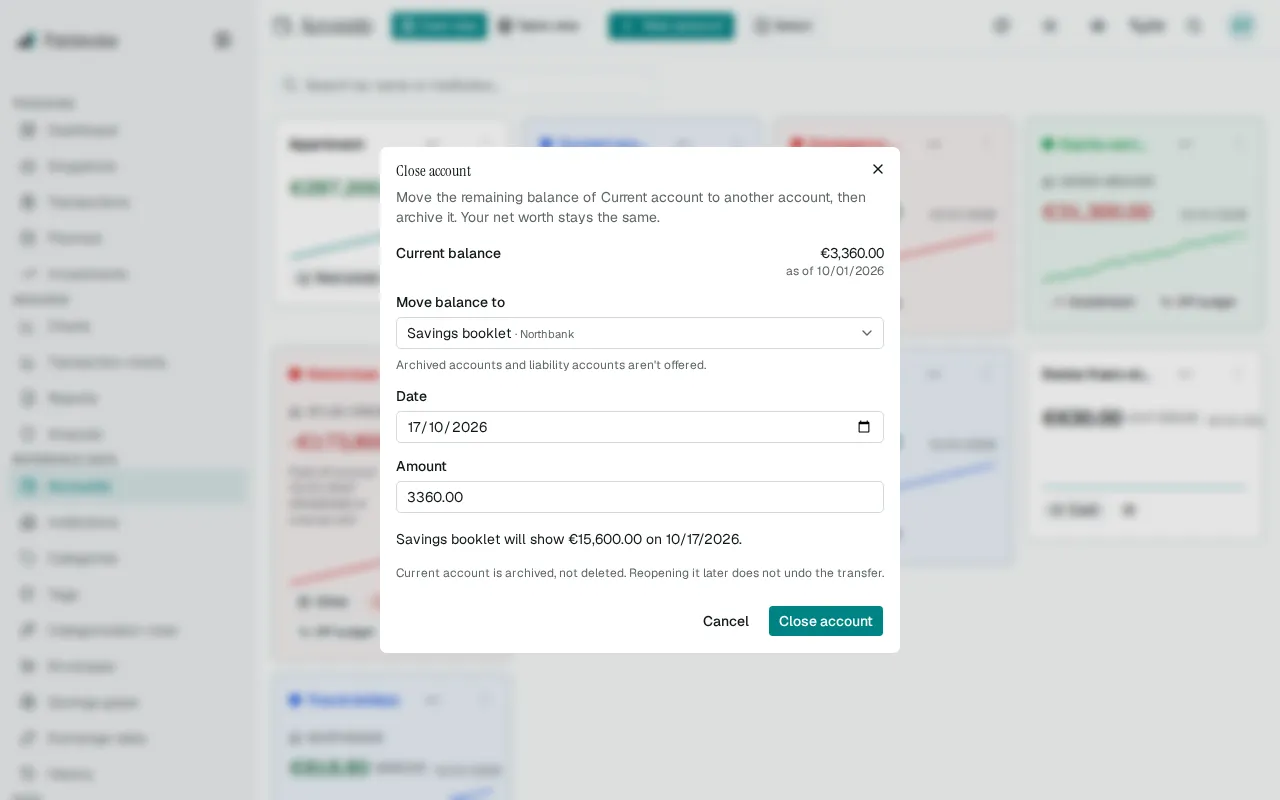
- The dialog shows the account’s current balance and the date it was recorded, and asks which account should receive it. Archived accounts and liability accounts aren’t offered.
- The amount starts at the current balance. You can lower it: whatever you leave stays on the closed account, and you’re warned that the amount differs from the balance. It can’t be higher than the balance.
- Between accounts in different currencies, you type both the amount sent and the amount received, because no exchange rate is stored.
- The date is today by default. It can’t be in the future or earlier than the latest snapshot of either account.
- Before you confirm, the dialog shows the balance the receiving account will have after the move.
When you confirm, Patrimoine creates a transfer between the two accounts, records the receiving account’s new balance on that date (its latest balance plus the amount received) and the balance left on the closed account (zero when you move everything), and archives the closed account. Either all of it happens or none of it. When you move the whole balance, your net worth does not change.
Some accounts are handled differently:
- An account with no balance, or no recorded balance at all, is simply archived.
- A liability account can’t be closed with a transfer. Archive it once its balance is zero.
- An account with a negative balance can’t be closed with a transfer either. Bring it to zero, or archive it.
- There must be another active account to receive the money.
Unarchiving the account later does not undo the transfer: the money stays where it was moved to.
Planned transactions on a closed account are paused: they’re no longer posted, marked overdue or reminded about, and nothing is deleted. They pick up again if you unarchive the account.
Bulk actions
Section titled “Bulk actions”Enter selection mode to select multiple accounts at once and archive or delete them in a single action.
Budget shortfall alert
Section titled “Budget shortfall alert”If an account has planned expenses (see Planned transactions), a Projected shortfall badge appears on its card when the enabled, repeating planned expenses still due this month exceed the account’s current balance. One-time planned items are not counted.