
Planned Transactions
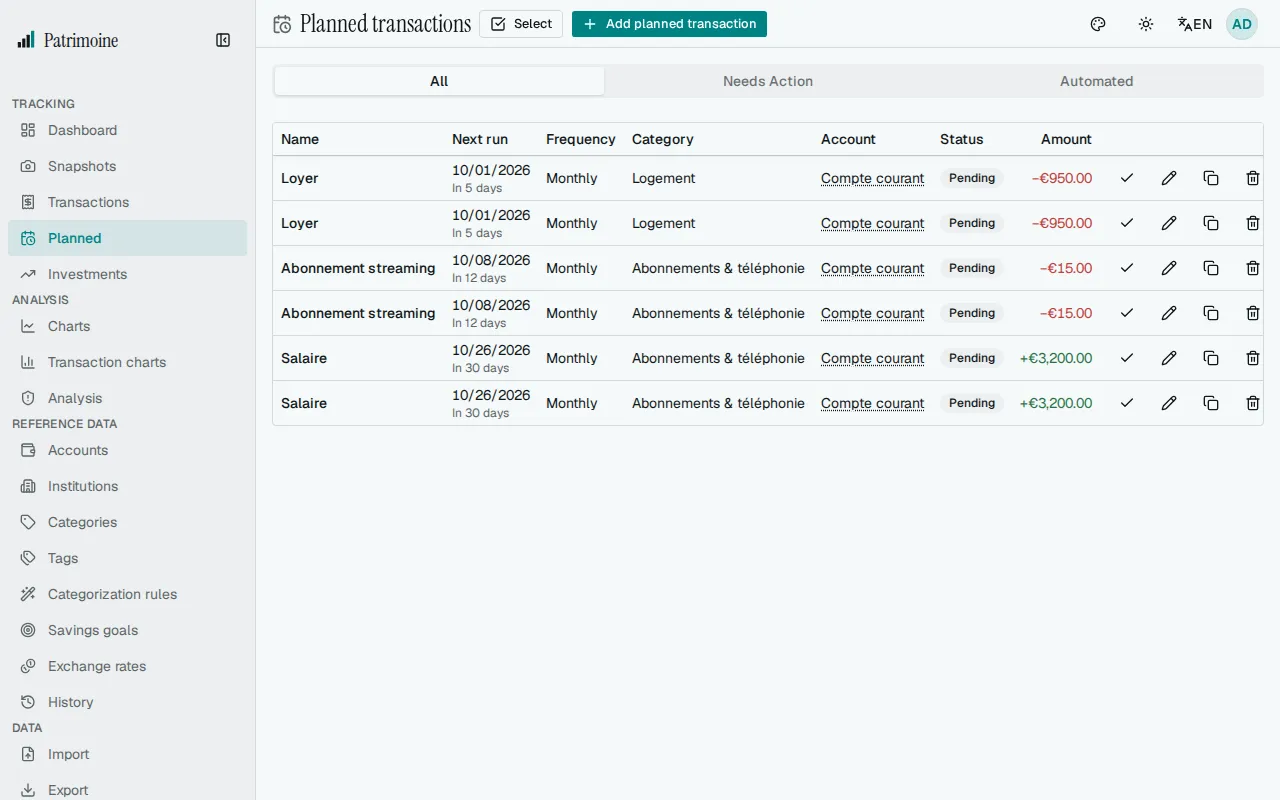
Planned tracks every bill and recurring schedule in one list, sorted by due date, reachable from the Planned entry in the sidebar. The same list can also be seen as a month calendar.
What a planned transaction is
Section titled “What a planned transaction is”A planned transaction is anything you want tracked ahead of time — a due-date bill like rent or a subscription, or a recurring schedule like a salary. Both kinds live together in one list sorted by due date, with nothing split across separate pages.
Automatic posting
Section titled “Automatic posting”Every planned transaction has its own automatic posting toggle, decided per item.
- With automatic posting off, the item is a reminder: it tracks a due date and waits for you to use Mark Paid, which records a real transaction in your ledger dated the day you marked it paid.
- With automatic posting on, the item posts a real transaction on its own schedule with no confirmation — nothing to click, nothing to review.
Choose the toggle that fits each item: off for bills you pay yourself, on for a salary or subscription that always happens the same way.
How often it repeats
Section titled “How often it repeats”A planned transaction repeats one time only, weekly, monthly, quarterly (every three months), or yearly.
A weekly or monthly item can also repeat every few weeks or months: set Repeat every to 2 for a biweekly item, or to 6 for twice a year. Weekly accepts 1 to 52 and monthly 1 to 11; for every 12 months use yearly. The list shows such an item as, for example, “Every 2 weeks”.
Anchoring
Section titled “Anchoring”- Weekly is anchored to a day of the week.
- Monthly and quarterly are anchored to a day of the month.
- Yearly is anchored to a month plus a day within it.
If the chosen day doesn’t exist in a given month — the 31st in a 30-day month, for instance — that occurrence lands on the month’s last day instead, and returns to the chosen day the next time it exists.
Occurrence dates
Section titled “Occurrence dates”- Each occurrence is scheduled from the one before it, not from today’s date, so a posting that runs late never pushes the rest of the schedule back.
- Once automatically posted, a transaction always carries the date it was scheduled for, never the date the posting actually happened.
- A transaction you mark paid by hand instead carries the date you marked it paid, unless a weekend option moved the occurrence (see Weekends below).
Weekends
Section titled “Weekends”For a recurring item, the On weekends option decides what happens when an occurrence falls on a Saturday or a Sunday. Choose Keep the date, Move to the Friday before, or Move to the Monday after.
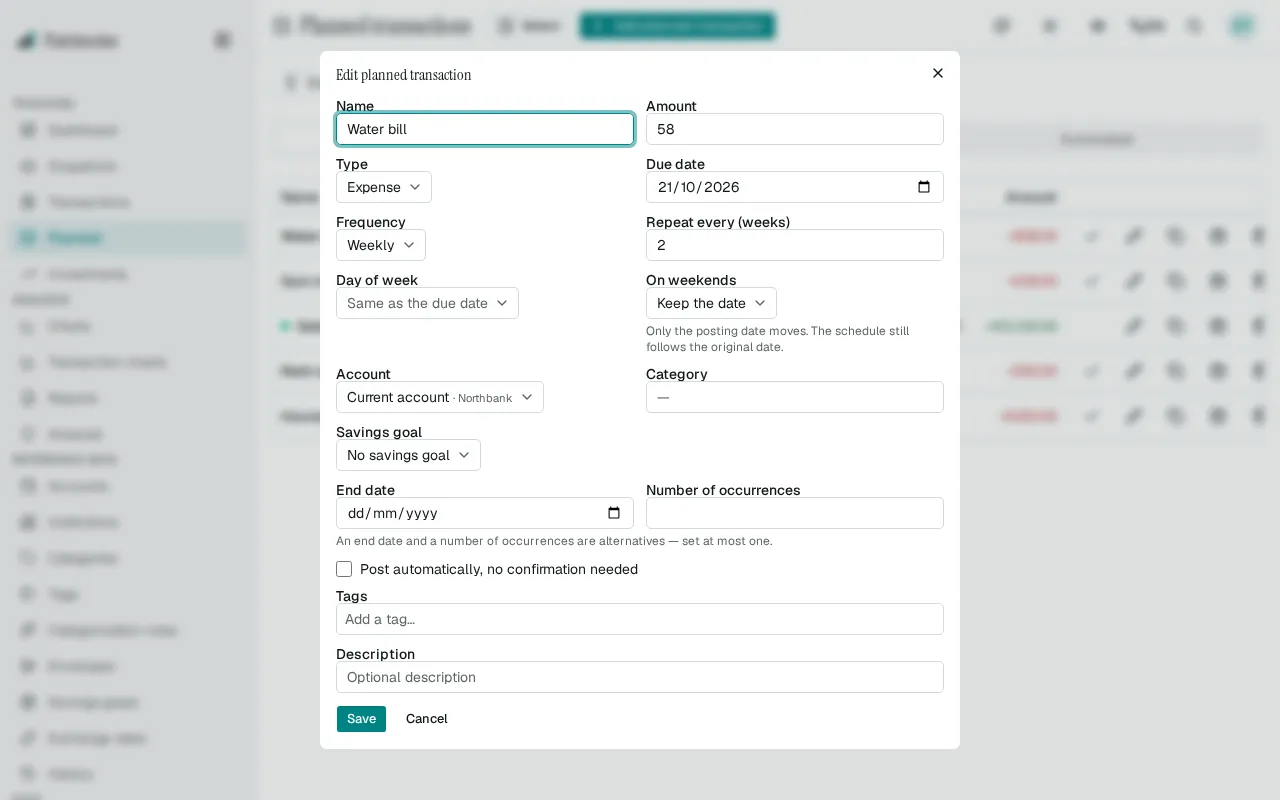
- Only the posting date moves. The schedule keeps following the original date: a payment set on the 31st stays on the 31st in the following months, even when one of them was moved.
- Automatic postings, reminders, overdue status and the balance forecast all use the moved date.
- An automatic posting is dated on the moved date. So is a payment you mark as paid yourself on an item with a weekend option, while an item without one is still dated on the day you mark it paid.
- The list shows the moved date, with the original date in a tooltip, and the weekend option is noted under the frequency.
- One-time items have no weekend option, and public holidays are not taken into account.
Ending a schedule
Section titled “Ending a schedule”A recurring schedule can end on a specific date, or after a set number of occurrences — set at most one of the two, never both. Once the bound is reached, the item stops posting and shows as done rather than disappearing from the list.
Skipping a date
Section titled “Skipping a date”On a recurring item that is still running, the calendar button in its row (Upcoming dates) lists the next six dates. Skip leaves one of them out without ending the series, and Unskip brings it back.
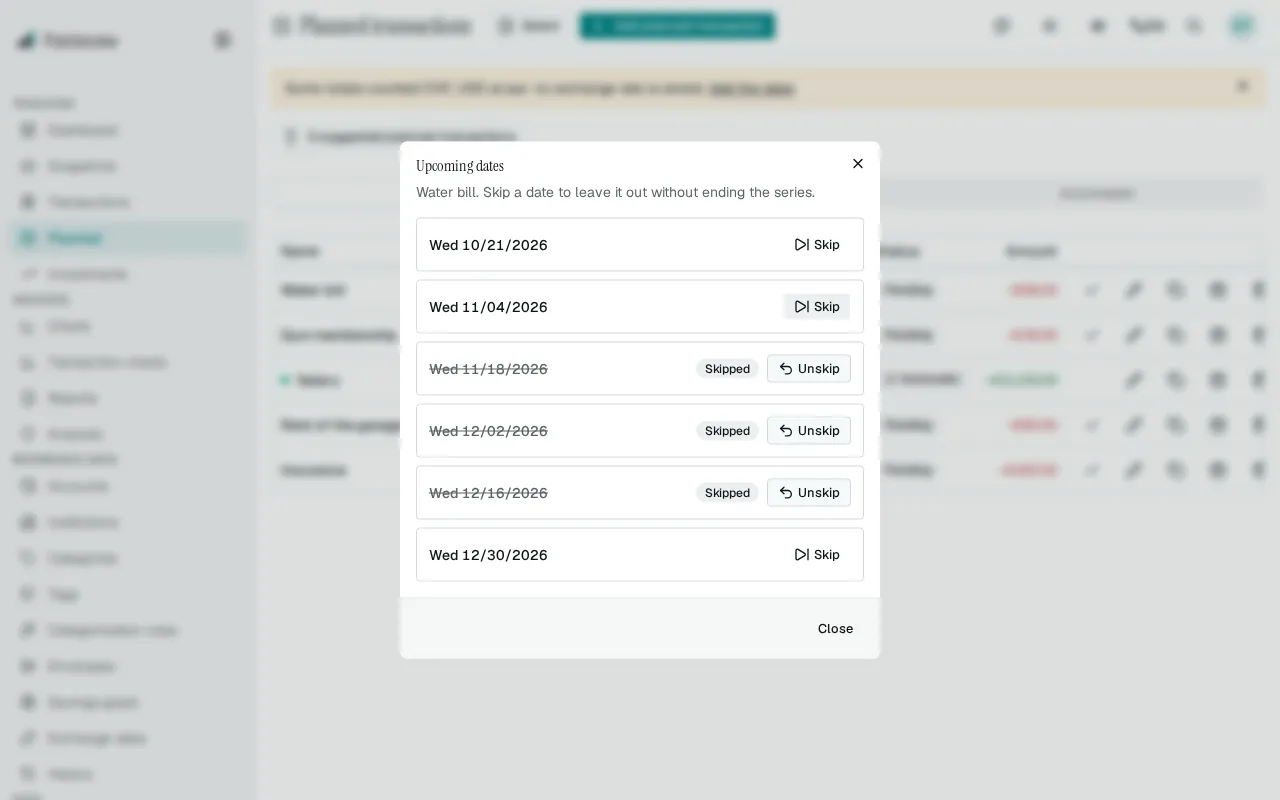
- A skipped date is never posted, not even for an automatic item.
- It does not count toward a maximum number of occurrences: the series simply runs for further dates until that number is reached.
- It sends no reminder and does not make the item overdue. When you skip the next date, the list moves on to the following one.
- A date that has already passed cannot be skipped.
- A date moved by the weekend option shows its posting date, with the original date noted beneath it.
- Changing the schedule itself (frequency, repeat interval, day, month or due date) clears the skipped dates, because they would no longer match the new dates.
- If every remaining date before the end date is skipped, the series ends.
Statuses
Section titled “Statuses”A planned transaction moves through upcoming, then due, then posted once it’s recorded — shown in different colors so you can tell them apart at a glance.
- If automatic posting is off and the due date passes with nothing done, the item becomes overdue: it’s waiting on you, a gentle nudge to act.
- If automatic posting is on and the attempt errors, the item becomes failed instead: the system tried to post it and something went wrong.
When an automatic posting fails
Section titled “When an automatic posting fails”- A failed item is not retried automatically — it stays exactly as it is until you resolve it with Mark Paid, which both records the payment and clears the failure.
- A notification (email, plus any configured webhook) is sent the moment a posting fails; nothing is sent when a posting succeeds, matching the silence automatic items already keep when everything goes right.
- Whenever at least one item needs this attention, a banner appears at the top of the list; its Review action jumps straight to the items that need you.
Filtering
Section titled “Filtering”Three filters sit above the list in the Planned tab:
- All shows everything, both automatic and manual, sorted by due date — the default view.
- Needs Action shows manual items still open (upcoming, due, or overdue) plus any automatic item that failed — everything that actually needs a decision from you.
- Automated shows only automatic items, so you can audit what’s running on its own without manual items in the way.
The list is sorted by the next run date. Click the Name, Next run, Frequency, Status or Amount header to sort by that column, and again to reverse it; the amount sorts by its sign, so expenses come before incomes.
Calendar
Section titled “Calendar”The List and Calendar switch next to the tabs shows the Planned tab as a month calendar, and the page keeps your choice when you reload it. Previous, Next and Today change the month. The week starts on Sunday in English and on Monday in the other languages.
- Each planned transaction appears on the date it will really post on, after the weekend rule, with its name and its amount signed in its account’s currency.
- A skipped date stays visible, greyed out, struck through and marked Skipped, and is not counted in any total.
- A day with several planned transactions shows how many there are and their total, or says Several currencies when they use more than one.
- Selecting a planned transaction opens it for editing. Selecting a day with several planned transactions shows the list for that day, with each one’s account and, when the weekend rule moved it, the date it was moved from; choosing one opens it.
- A day on which one of your pay schedules pays is marked Payday, with the schedule name on hover, even when nothing is planned that day. The weekend rule of the schedule is applied.
- The All, Needs Action and Automated filters apply to the calendar as well.
- On a small screen the calendar becomes a list of the days of the month that have planned transactions; select one to open it.
- When a month holds more planned transactions than the calendar can show, a notice says so, and the filters above help narrow it down.
- With a keyboard, Tab moves into the calendar, the arrow keys move between days, Page Up and Page Down change month and Enter opens the day.
- The calendar shows what is still to come or still owed: a paid occurrence leaves it, so a past month shows only what is unpaid.
Suggested planned transactions
Section titled “Suggested planned transactions”When a payment repeats at regular intervals (weekly, monthly, quarterly or yearly) on the same account with the same description over the last 24 months, and its recent amounts stay within about 5% of each other, a button appears above the list, for example “2 suggested planned transactions”. Open it to review each suggestion.
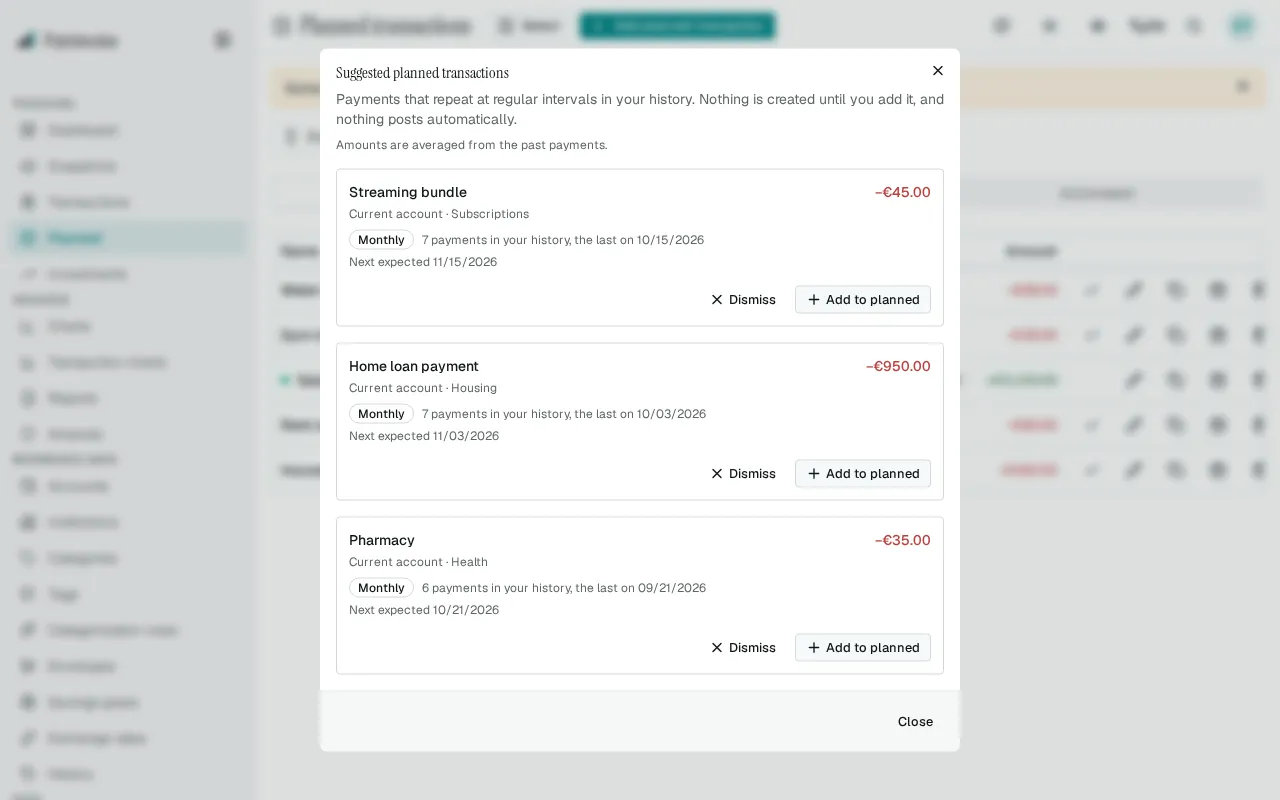
- Each suggestion shows the averaged amount, how many payments were found, the date of the last one and the next expected date.
- When the recent payments mostly share a payee (the payee of the latest payment is on more than half of them), the suggestion shows it, and Add to planned creates the planned transaction with that payee. When the payees differ, nothing is shown and no payee is set.
- Add to planned creates the planned transaction right away, without automatic posting. Turn automatic posting on later by editing the item if you want it.
- Dismiss hides that pattern for good, on every device you use.
- Patterns already covered by a planned transaction are not suggested, and transfers and accounts marked as off budget are ignored.
Subscriptions
Section titled “Subscriptions”The Subscriptions tab of the Planned page (or Go to Subscriptions in the command palette) lists your repeating planned expenses with their cost per year and one yearly total, both in your base currency. Weekly, monthly, quarterly and yearly items are all brought to a yearly amount, so a streaming plan paid every month and an insurance paid once a year can be compared at a glance. Each line also shows what you pay each time, in the item’s own currency, and its next payment date.
- The yearly total counts only the planned expenses listed under Active subscriptions. Income and one-time items are left out.
- When a price changed, the line shows Price up or Price down with the change in percent, and the old and new amounts. A price change is spotted when the last two recorded payments of an item differ; nothing is shown for an item that was only paid once, or whose price did not change.
- When an exchange rate is missing, the amount is counted at par and a notice under the total says so, as everywhere else in the app.
- Edit opens the planned transaction. To delete it, go back to the Planned tab.
Under Detected from your history, subscriptions found in your payments that are not planned yet are listed apart. They are not counted in the total, and a line under the total says how many are left out. Add to planned creates the planned transaction right away, without automatic posting, and moves it to the active list.
A planned transaction can name a payee. Choose one from your payees in the form, or type a new name there to create it on the spot. Every transaction the item posts, whether automatically or with Mark Paid, gets that payee (see Payees).
Changing or clearing the payee later only affects the transactions posted after the change: the ones already in your ledger keep theirs. The list shows the payee under the item’s name (and, in the Category and Account columns, the subcategory under the category and the institution under the account name), and the occurrences view of a recurring item shows it too.
A payee that a planned transaction uses can’t be deleted; merge it into another payee instead, and the planned transaction follows the kept payee.
Link with a savings goal
Section titled “Link with a savings goal”A planned transaction can optionally be tied to a savings goal, to declare that it funds it. This link shows up on that goal’s card on the Savings Goals page.
Trash and restore
Section titled “Trash and restore”Deleting a planned transaction moves it to the trash instead of removing it right away. It stops appearing in the list and is left out of automatic posting, overdue detection and reminders. Use the Trash button in the toolbar (shown once there is at least one deleted item) to restore an item or delete it permanently. Emptying the trash permanently deletes everything in it and cannot be undone.
What moved
Section titled “What moved”Bills and recurring transactions are now one feature: Planned. The Budget page no longer has its own recurring section — every kind of scheduled money lives here instead.
When this merge shipped, existing items were migrated automatically: former recurring transactions kept automatic posting on, and former bills kept it off, so nothing you had already set up changed behavior.