Settings & Profile
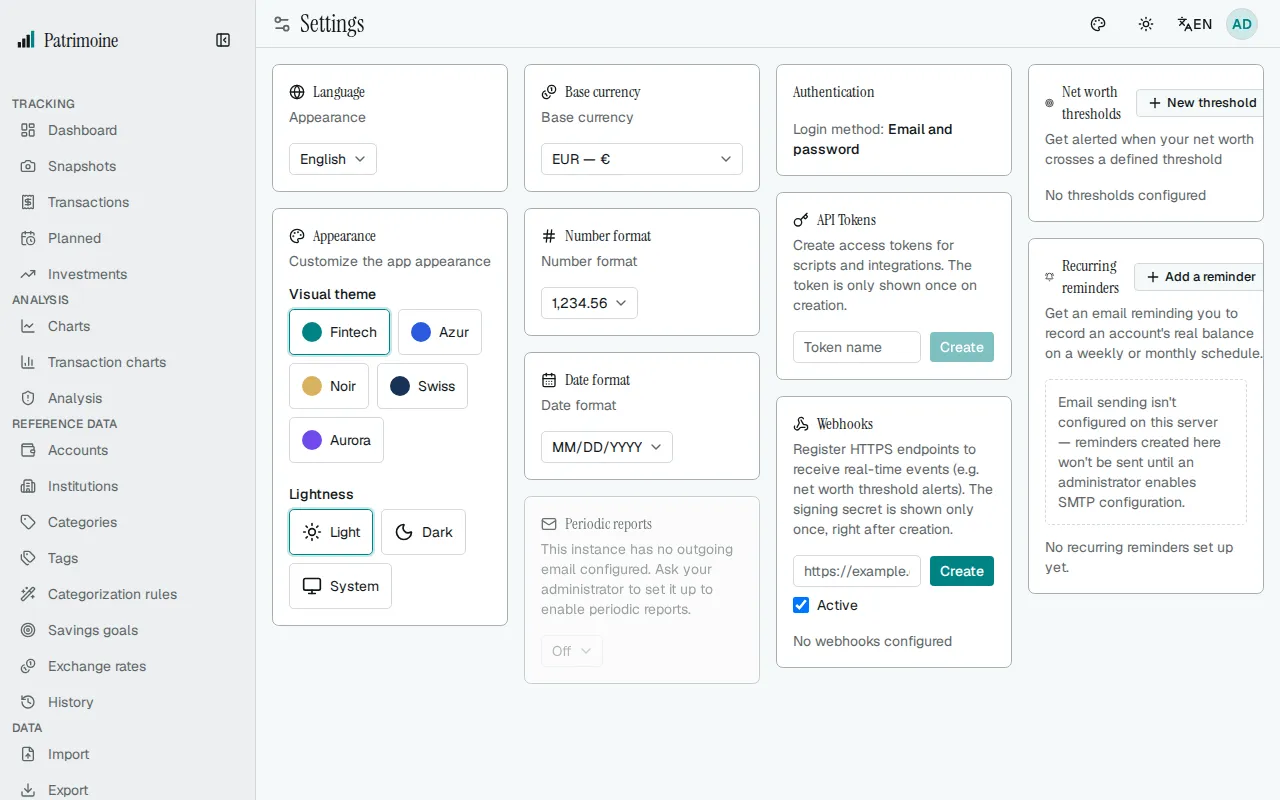
Settings holds app-wide preferences and integrations; Profile (a separate page) holds your personal account details. Open either from the profile menu (the round initials button at the top right). Settings is made of cards: Language, Appearance, Custom theme, Base currency, Number format, Date format, Periodic reports, Rules, Net worth thresholds, Alert rules, Notifications and Recurring reminders (see Snapshots and history). The Profile page holds the Authentication, API tokens and Webhooks cards.
Language, appearance, and currency
Section titled “Language, appearance, and currency”Settings lets you adjust the app’s language, appearance, and formats:
- switch between French, English, Spanish, German, and Italian;
- pick one of six visual skins (Fintech, Azur, Noir, Swiss, Aurora, Ledger; new accounts start on Ledger) and, independently, light or dark mode — every skin is available in both;
- set your base currency;
- set independent date and number format presets for how dates and numbers are displayed throughout the app (each follows the UI language by default — the Follow language option at the top of the list — until you explicitly pick a fixed format). The number format also drives percentages, the example amounts shown in empty fields, and how the amounts you type are read (see Typing amounts).
Periodic email reports are configured here too — see the Scheduled Email Reports section.
Typing amounts
Section titled “Typing amounts”Amounts you type are read in your number format: in the transaction and planned transaction forms, in the New snapshot form, in categorization rule conditions, and in the amount filters of Transactions, History and Investments.
- Your decimal separator is the decimal point.
- Your thousands separator groups thousands only when exactly three digits follow it.
- A separator that is not part of your format is read as a decimal point, so the dot of a numeric keypad always works.
| Number format | You type | Read as |
|---|---|---|
| 1,234.56 (English) | 1,500 | fifteen hundred |
| 1,234.56 (English) | 1.5 | one and a half |
| 1.234,56 (German, Spanish, Italian) | 1.500 | fifteen hundred |
| 1.234,56 (German, Spanish, Italian) | 1,500 | one and a half |
| 1 234,56 (French) | 1 500 | fifteen hundred |
| 1 234,56 (French) | 1,5 or 1.5 | one and a half |
A number that uses both separators, such as 1,234.56 or 1.234,56, reads the same in every format. A hint under these fields states the rule for your format, and when you leave a field, an amount it understood is rewritten in your format without thousands separators (1,500 becomes 1500 in English), so you can check how it was read before saving.
Text size and density
Section titled “Text size and density”Settings > Appearance sets how large the text is and how tightly tables are laid out. Both apply as soon as you pick them and follow your account across devices.
- Text size scales all text and spacing together: 87.5 %, 100 % (the default), 112.5 %, 125 % or 150 %. Use the slider or the smaller and larger buttons to change it. It is a percentage of your browser’s own text size, so a larger browser setting is respected too. Charts follow it.
- Density sets the row padding of tables, the height of fields and buttons, and the spacing inside cards: Compact, Comfortable (the default) or Roomy. A small preview under the buttons shows the effect.
A preview line under the pickers shows the result. Android keeps its own text size setting; the value chosen here is not shared with it.
Custom theme
Section titled “Custom theme”The Custom theme card overrides the colours and the corner radius of your skin, in light and dark modes alike, with CSS custom properties. Write one declaration per line:
--primary: oklch(0.55 0.2 265);--radius: 0.5rem;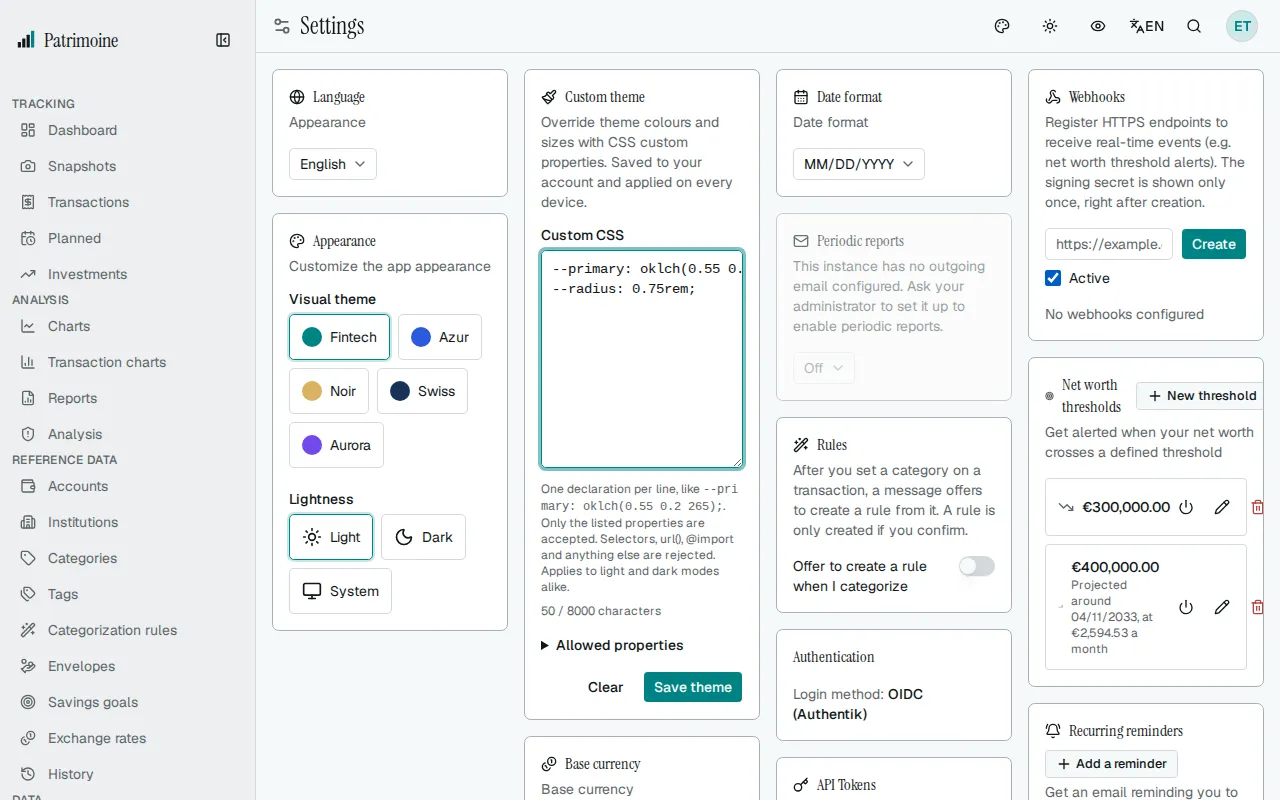
The accepted property names are listed under Allowed properties in the card. Anything else — selectors, url(), @import, comments, !important, an unknown property or a value that is not accepted — is refused with a message naming the line, and nothing changes.
Field outlines (text boxes, dropdowns, checkboxes) take their colour from --input-border, not --input, which still colours the switch track and some field backgrounds. A theme that recoloured field borders through --input needs --input-border for them.
The theme is saved to your account and applied on every device after you sign in (the Android app does not apply it). Saving an empty field with Save theme removes the theme.
Clear empties the field; nothing changes until you save.
The Offer to create a rule when I categorize switch is off by default. When it is on, setting a category on a transaction (from the table, the edit form, or a bulk edit) shows a message with a Create rule action that opens the rule editor already filled in from what you just categorized. Nothing is created unless you confirm by saving the rule.
The setting belongs to your account, so it follows you across devices and is included in a backup.
The Suggest a category from the payee switch is on by default. It controls whether a category is suggested from a transaction’s payee, as described on the Payees page. Existing transactions are never changed. Like the other setting, it belongs to your account, so it follows you across devices and is included in a backup.
To install the web app, see Install as an app.
Net worth threshold alerts
Section titled “Net worth threshold alerts”Define a target amount and an above/below direction – for example, alert when your net worth drops below €10,000.
- When your net worth crosses it, you get a notification in the bell (see Notifications below). It is also sent to your webhooks as
alert.fired(see the Webhooks section below) and by email if you chose that for this kind of notification, and the list shows the threshold as reached. You get one notification per crossing: it comes again only after your net worth went back to the other side and crossed the threshold again. - Thresholds that were already crossed when the app was updated to this version show in the bell without being sent to webhooks or by email.
- The Enabled checkbox lets you pause a threshold without deleting it.
- For a threshold above your net worth, the list shows the month it should be reached at the pace of the last 12 months, with that monthly change. The dashboard milestone card shows the same date for the nearest target. It is a straight-line estimate, not a forecast: it ignores compounding and needs at least three months of history. When there is no date, the list says why (no upward trend, not enough history, or more than 50 years away). Thresholds set to alert below never get a date.
Alert rules
Section titled “Alert rules”Alert rules decide which alerts the server raises for you. Settings has an Alert rules card with three rules, each with its own switch:
- Budget overspent: alerts you when spending in a category, or in all categories, reaches one of two shares of the category’s budget limit for that month, which can be a limit set for that month only (see Budget), 80 % and 100 % by default. Each level raises one alert per category per month, and the 100 % alert comes in addition to the 80 % one. The levels go from 1 to 200 %, and the second must be higher than the first; leave the second empty to be alerted once. A rule saved before this update at 100 % now has both levels. Off by default.
- Bill due: alerts you a set number of days before a planned bill that does not post automatically, 3 days by default. Bills already overdue are included.
- Stale snapshot: alerts you when an account, or any account, has had no snapshot for a set number of days, 45 by default.
Change the values, then use Save alert rules: one button saves the three rules together. A rule you switch off keeps its values and its fields are greyed out.
- Each alert appears once per occurrence in the bell (see above) and is sent to your webhooks (see the Webhooks section below). The first time the server checks your alerts, for example right after the update that added alerts or when you first save your alert rules, the alerts it finds only appear in the bell, so your webhooks do not receive a burst of alerts for everything already stale or due. Every alert raised after that first check is also sent to your webhooks.
- The server checks every 30 minutes, also while the app is closed.
- A rule change applies at once: saving re-checks your alerts, and the alerts of a rule you switch off leave the bell straight away.
Notifications
Section titled “Notifications”The bell in the top navigation bar is the notification center for your alerts. Its badge counts the notifications you have not read yet. Open the bell to list your notifications, newest first, with the unread ones in bold. The check button next to a notification marks it as read.
The bell stays in the top navigation bar even when there is nothing to read. Select a notification to open its page, which also marks it as read. The X button dismisses a notification for good: the same notice does not come back while its situation lasts. Mark all as read clears the badge in one step, including notifications that are not shown yet. If the list is long, use Show more notifications to load the next ones.
The Notifications card in Settings chooses, for each kind of notification (Budget overspent, Bill due, Stale snapshot, Net worth threshold, Snapshot reminder), how it reaches you: In-app (the bell), Email, In-app and email, or Off. A choice is saved as soon as you make it. Off removes that kind from the bell and from email, but webhooks still receive it. The email options appear only when the administrator has set up outgoing email; without it, the kinds set to email show in the bell. Each new notification is one email to the address of your profile, and none is sent for what the first check after an update finds. A Bill due notification set to email arrives in addition to the reminder email that planned transactions already send. A Snapshot reminder arrives by email only if you choose that; if you received reminder emails before the update, it was set to Email for you. The gear button at the top of the bell’s list, or the Notification settings button when the list is empty, opens these settings.
Profile page
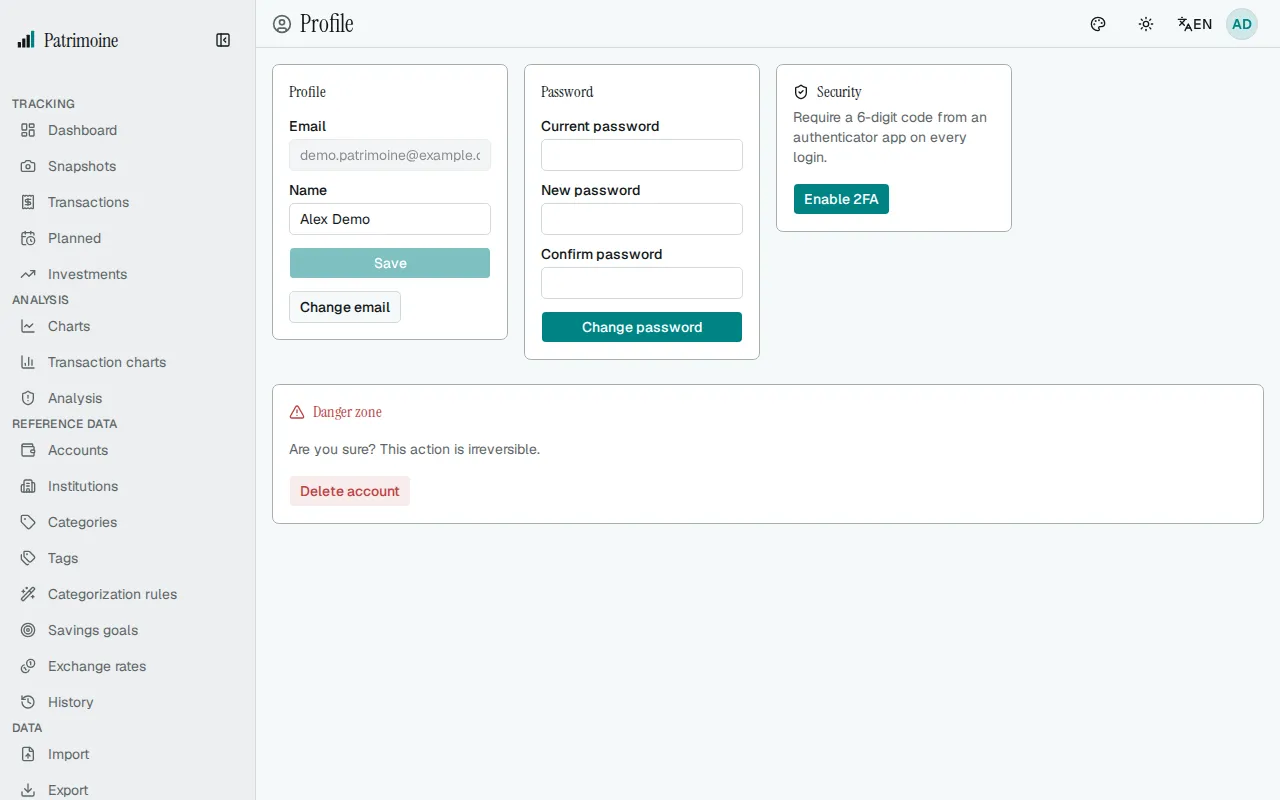
Section titled “Profile page”On the separate Profile page you can:
- set your display name;
- change your email or password if you use a local account, with current-password confirmation (OIDC accounts manage their email and password with their identity provider, not here). An email-change request can be repeated after five minutes, and a new one replaces the previous link;
- set up two-factor authentication if you use a local account (see the Security section — OIDC accounts manage 2FA with their identity provider);
- see the browsers signed in to your account and sign out the ones you don’t recognise, if you use a local account (see Login sessions);
- permanently delete your account from the Danger Zone (local accounts only — OIDC accounts must ask an administrator; the last remaining admin cannot delete their account while other users exist; the only user of an instance can).
Authentication provider
Section titled “Authentication provider”Profile shows, read-only, whether your account signs in locally or through single sign-on (OIDC).
API tokens
Section titled “API tokens”Create a named token for programmatic access. Revoke a token at any time from the list.
Token limit
Section titled “Token limit”You may hold up to 10 tokens at once.
- Creating an 11th token manually from this page fails until you revoke one.
- Mobile sign-in works differently — each sign-in mints its own token, and hitting the limit there automatically revokes your oldest token to make room, so re-authenticating on mobile always keeps working. A token minted by single sign-on (OIDC) mobile sign-in expires after 90 days, after which the app asks you to sign in again.
To use a token from a terminal, see the Command-line client page.
Webhooks
Section titled “Webhooks”Register an HTTPS endpoint to receive events:
snapshot.created,snapshot.updatedandsnapshot.deleted: the data holdssnapshot_idand, except for a deletion,account_id,dateandbalance.alert.fired: one per notification, with the alert’s own figures.bill.reminder: a planned transaction is coming due (bill_id,name,amount,due_date).planned_transaction.autopost_failed: an automatic posting failed (planned_transaction_id,name,amount,next_due_date,reason).
The data of a net worth threshold alert is only alert_id, rule_type (net_worth_threshold), threshold_id and direction: the target amount and your net worth are never sent. The data of a snapshot reminder is alert_id, rule_type (snapshot_reminder), recurring_snapshot_id, account_id, account_name and due_date; it holds no balance.
- You choose whether a webhook is active at creation time; there is no later active/inactive toggle — to disable a webhook or change its URL, delete it and create a new one.
- The delivery history lists recent attempts with their status, the number of tries, and, on failure, the last error code received (such as
timeout,tls_error,connect_error,blockedorhttp_503).
System page
Section titled “System page”The System page (open it from the profile menu) gives a read-only overview, useful for a quick diagnosis or before reporting a problem. It shows:
- a data overview (number of accounts, snapshots, institutions, categories, investment holdings, savings goals, budgets, transactions and recurring snapshots, tracked currencies, plus the covered date range and average snapshots per month);
- system health (database type and size, backend version, authentication mode, scheduled-task worker mode, number of API tokens, webhooks, and audit log entries);
- recent activity (date of the last snapshot, last login time, number of stored exchange rates).
The exact app version and build info (commit, build date) live in the About dialog, opened from the profile menu.