
Savings Goals
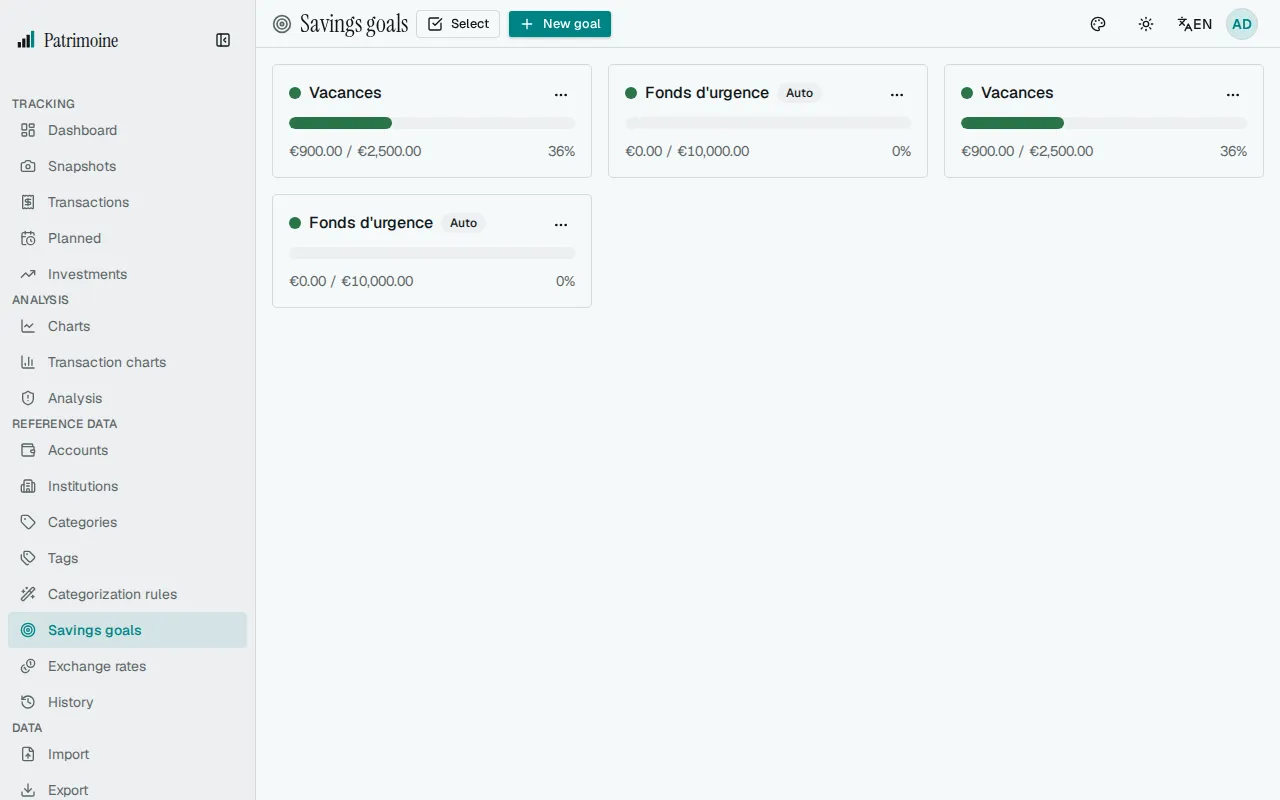
Manage your savings goals from the dedicated Savings goals page, reachable from the sidebar. They also appear on the Dashboard’s savings goals card and the tracking tab on the Charts page.
Creating a goal
Section titled “Creating a goal”Set the following for a goal:
- A name.
- A target amount greater than zero.
- An optional deadline.
- An optional color (used to tell the goal apart in progress charts).
You can optionally link one or more accounts to the goal.
Linked vs. manual progress
Section titled “Linked vs. manual progress”- If you link one or more accounts, the goal’s current amount is computed automatically from those accounts’ balance change since a start date you set.
- If you link no accounts, you enter and update the current amount manually yourself.
Link with a planned transaction
Section titled “Link with a planned transaction”A planned transaction can declare this goal as the one it funds. Linked planned transactions show up on the goal’s card, with a link to the Planned Transactions page.
Amount per payday
Section titled “Amount per payday”If you pay towards a goal each time you are paid, give it a pay schedule: pick one under Paycheck schedule when you create or edit the goal, or choose New schedule to create one without leaving the form. A goal without a schedule of its own uses your default schedule. A goal with a deadline then also shows how much to set aside each payday: the amount still missing divided by the number of paydays between today and the deadline, as worked out from the schedule. The schedule’s weekend rule is taken into account. The Android app shows the same line on each goal with a deadline.
- The schedule is optional and only changes what is displayed: nothing is posted and no money moves.
- No per-payday amount is shown for a goal without a deadline, when no payday is left before it, or when there is no schedule (and no default schedule).
- A schedule that envelopes or goals use cannot be deleted.
Contribution templates
Section titled “Contribution templates”A contribution template is a fixed amount saved per paycheck or per month under a name, reusable on several goals. Pick one under Contribution template when you create or edit a goal, or choose New template to create one without leaving the form. Give it a name, choose Fixed amount per paycheck or Fixed amount per month, and enter an amount above zero.
The Savings goals page lists your templates in a Contribution templates section above the goals, where you add, edit and delete them. Each row shows the name, the amount and, when goals use it, how many.
- Editing a template updates the projection of every goal that uses it.
- A template that goals use cannot be deleted: its delete button is disabled and tells you to pick another template for those goals first.
- After a restore from a backup, the result lists the templates as Contribution templates.
The goal’s card then shows when it would be reached: the amount still missing divided by the template amount, rounded up, gives the number of contributions. When you edit a goal, the form shows its current projection until you change an amount, a date, the linked accounts, the schedule or the template; save to see the new one.
- A per-paycheck template follows the goal’s pay schedule, or your default schedule, and its weekend rule.
- A per-month template counts one contribution on the 1st of each month, starting with the next 1st.
- With a deadline, the card says whether you are on track or how many days (per paycheck) or months (per month) late.
- Editing a template, the goal, its schedule or your default schedule updates the date.
- With no pay schedule (and no default schedule), a per-paycheck template shows a hint to add one.
- A goal already at its target shows Goal reached.
- A date more than 50 years away is not shown: the card says the goal is not reached within 50 years at this pace.
- Nothing is posted and no money moves.
- The Android app does not show templates.
Progress bar
Section titled “Progress bar”Each goal shows a progress bar comparing its current amount to its target amount, along with the percentage complete. If you didn’t pick a color for the goal, the bar’s color is chosen automatically based on how close the goal is to its deadline.
Archiving a goal
Section titled “Archiving a goal”Each goal’s actions menu lets you edit, archive, unarchive, or permanently delete it. Archiving hides a goal from the projection timeline and dims its card without deleting its data — use it for a goal you’ve paused rather than abandoned.
To delete several goals at once, tick them in the list and choose Delete selection; this cannot be undone. A goal name can have up to 100 characters.
Projection timeline
Section titled “Projection timeline”The goal projection timeline estimates roughly when each goal will be reached at the current pace. It is based on your average net savings over the last 3 months with transaction activity.
- A goal already at or above its target shows as reached.
- A goal with no positive average savings shows no projected date.
This chart uses your average savings rate and is separate from the projection a contribution template gives a goal.
Home screen widget (Android)
Section titled “Home screen widget (Android)”When you add the Savings goal widget to your home screen, you choose which goal it shows: a specific goal, or the most urgent one (the goal with the nearest deadline).
- Each widget keeps its own choice, so you can place several, one per goal.
- On Android 12 and later, long-press a placed widget and choose to reconfigure it to change its goal.