
Tags
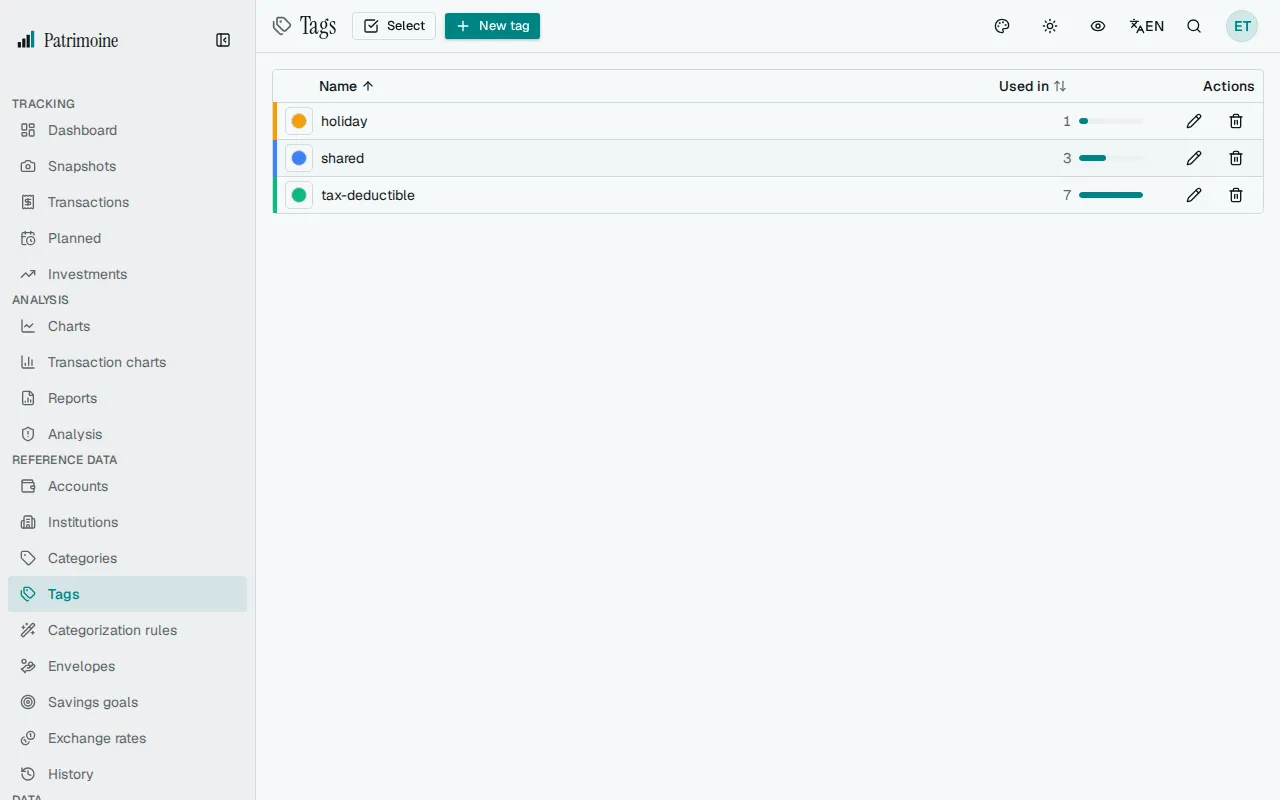
Tags let you track spending that cuts across several categories (for example “Japan trip” or “Kitchen renovation”) without changing a transaction’s existing category. Some are created automatically when you import a Boursorama CSV; you can also create your own.
Creating a tag
Section titled “Creating a tag”From the Tags page, click New tag and give it a name and, optionally, a color. It’s immediately available to apply to transactions.
Applying a tag to transactions
Section titled “Applying a tag to transactions”Editing a single transaction, the tag picker fully replaces that transaction’s tag list. Selecting several transactions and using bulk edit instead adds the chosen tags to whatever tags are already there, without removing any.
Creating a tag while you type
Section titled “Creating a tag while you type”In a transaction’s tag field, type a new name and choose Create “name”.
Renaming, recoloring and deleting
Section titled “Renaming, recoloring and deleting”Use the pencil on a tag’s row to change its name or color. The Used in column shows how many transactions use the tag. Deleting a tag removes it from every transaction and planned transaction it is attached to and cannot be undone.
Merging duplicate tags
Section titled “Merging duplicate tags”From the Tags page, select two or more tags and use Merge: pick which one survives, a preview shows how many transactions and planned transactions will be reassigned, and the other selected tags are deleted once you confirm.