
Security
This page covers the security-related steps you can take as a user of this app.
Changing your password
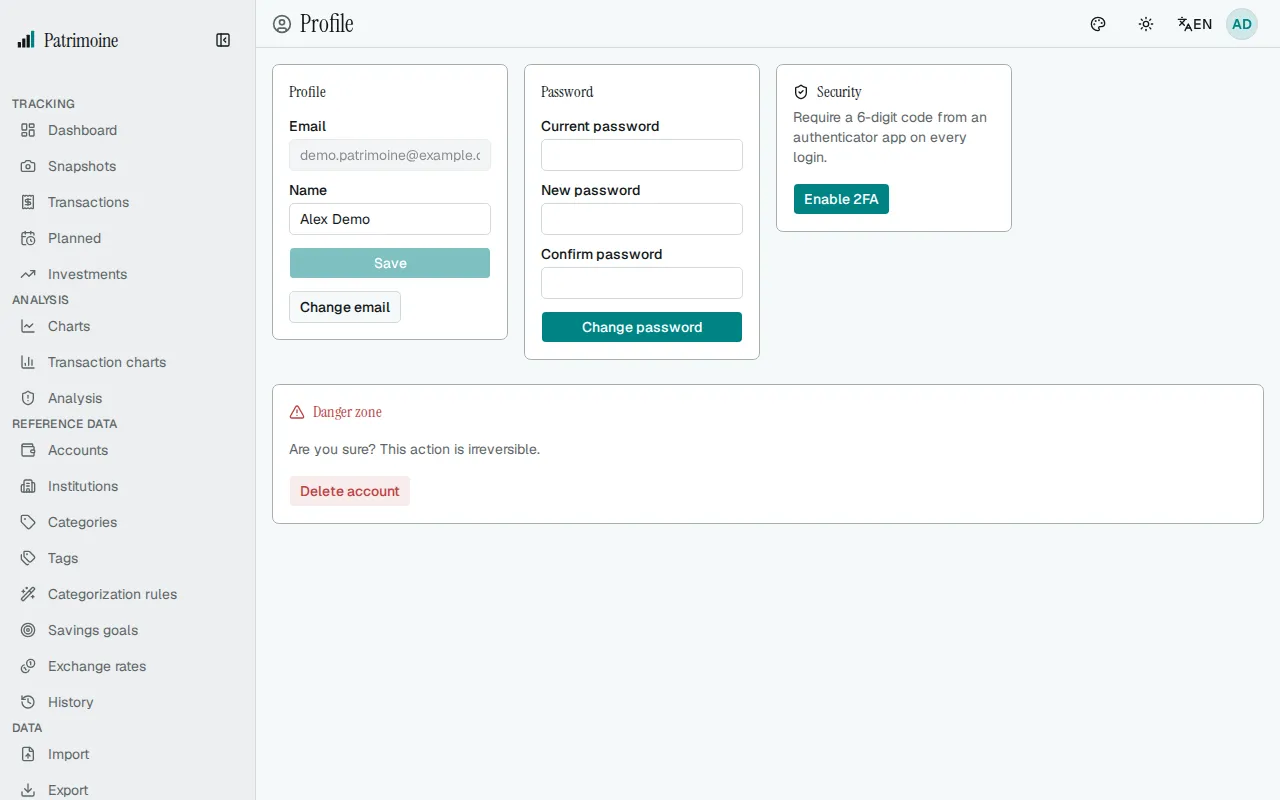
Section titled “Changing your password”If you use a local account, change your password from the Profile page at any time. OIDC accounts manage their password with their identity provider instead.
Password requirements
Section titled “Password requirements”New passwords must be at least 8 characters long and must not be on a built-in list of very common passwords (such as “password123”); a rejected password shows an error and you pick another.
Two-factor authentication (2FA)
Section titled “Two-factor authentication (2FA)”Enable 2FA from the Profile page:
- Enter your password to start.
- Scan a QR code with an authenticator app.
- Confirm with the 6-digit code it generates.
Disable it again the same way, with your password.
Recovery codes
Section titled “Recovery codes”Right after you turn on two-factor authentication, Patrimoine shows ten recovery codes once. Save them straight away: copy them, download them as a text file or print them. They can’t be shown again, and the window stays open until you confirm you saved them.
Each code works once, in place of an authenticator code, when you sign in. Keep them somewhere safe, apart from your authenticator device.
To sign in with one, enter your email and password, then on the verification step choose Use a recovery code instead and type the code, with or without hyphens. Each code works once. Afterwards Patrimoine offers to review your codes: you can generate a new set with your password alone.
In your profile, the Security card shows how many recovery codes you have left and warns you when two or fewer remain. Generate new codes asks for your password and replaces the whole set: the old codes stop working at once, and the new ones are shown once, the same way. Turning two-factor authentication off deletes your recovery codes. If the server can send email, you also get an email whenever a code is used or the set is replaced.
Failed sign-ins
Section titled “Failed sign-ins”After 5 failed sign-in attempts on an account from the same address, that address is blocked for 15 minutes; the delay doubles with each further failure, up to 4 hours. Many failed attempts on one account from different addresses (25 by default) lock the account for a while. Wait and try again, or ask an administrator; these limits are set by the administrator.
API tokens
Section titled “API tokens”Create a named API token in Profile (up to 10 at a time), copy its value immediately (it is shown only once), and revoke it whenever you no longer need it. See Settings and profile.
Login sessions
Section titled “Login sessions”Logging in establishes a session for this app. The Log out entry in the profile menu, in the top navbar, ends that session.
In your profile, the Active sessions card lists every browser signed in with your email and password, with its browser and system, an approximate network, when it signed in and when it was last used. The last-used time is updated when the session renews, so it can be up to 30 minutes behind. This device marks the one you are using. Legacy session groups sign-ins made before sessions were tracked; they expire on their own.
To sign another device out, choose Revoke session on its row and confirm. That device is signed out the next time it contacts the server. Your API tokens are not affected.
Sign out everywhere else ends every session except the one you are using, including legacy sessions. You stay signed in here, and your API tokens are not affected. Sessions opened through single sign-on are managed by your identity provider and are not listed.
Audit log
Section titled “Audit log”The read-only Audit Log page lists your account’s recent activity as a paginated, filterable table. Each entry shows its event, HTTP method, path, status, IP address, duration, and timestamp.
Filtering
Section titled “Filtering”The filter bar above the table narrows the list by:
- Event type.
- Entity type.
- Date range.
- Free-text search (matches the path, entity type, entity ID, or IP address).
- Status-code bucket (success, client error, or server error).
- HTTP method.
Sorting
Section titled “Sorting”Click a column header (date, event, method, path, status, IP address or duration) to sort the whole log by it; click again to reverse the order. The log opens newest first, and sorting restarts from the first page.
Paging and export
Section titled “Paging and export”The number of entries shown per page (50, 100, or 250) is adjustable via the selector next to the Previous/Next buttons, alongside a jump-to-page selector for moving directly to a specific page.
Export CSV/Export JSON download every entry matching the current filters, not just the visible page. Exports are capped at the newest 50,000 entries; when the cap cuts an export short, a warning appears instead of the success message.